Unstructured data is everywhere, and if you’re a data scientist, analyst, or engineer, you’ve likely dealt with text data you want to classify by sentiment. Common sources of such data include product reviews, emails, call transcripts, or CRM notes. Making sense of these can be tough, but often you just need the overall tone: good, bad, happy, frustrated. Identifying sentiments lets you filter records quickly or spot overall trends.
In this guide, we will explore product review data and use Large Language Models (LLMs) for sentiment analysis. We shall then share results through an interactive app or automated workflow.
Learning Objectives
The goal of this guide is to learn how to use a mix of LLMs and Python to categorize a set of plain English reviews within a structured data set. We’ll not only categorize the reviews, but we will also analyze the sentiments to understand the overall sentiment by product category. We will also learn to share our findings as an interactive data app and automated sync to Google Sheets.
Exploring Your Data With SQL, Python, and AI
In this workflow, we’ll start by gathering and preparing the data, then run exploratory data analysis (EDA) before performing sentiment analysis. We’ll use Fabi.ai, an AI-native BI platform with a built-in AI data analyst.
Preparing Your Data
The first step in any analysis is gathering and preparing your data. We’ll use text data in a structured table. With Fabi, you can connect to many sources: warehouses, files, or Google Sheets. For this guide, we’ll pull from a public Google Sheet, but you can use any source.
Start by adding a Google Sheets cell in a new Smartbook (an AI-native Python notebook).
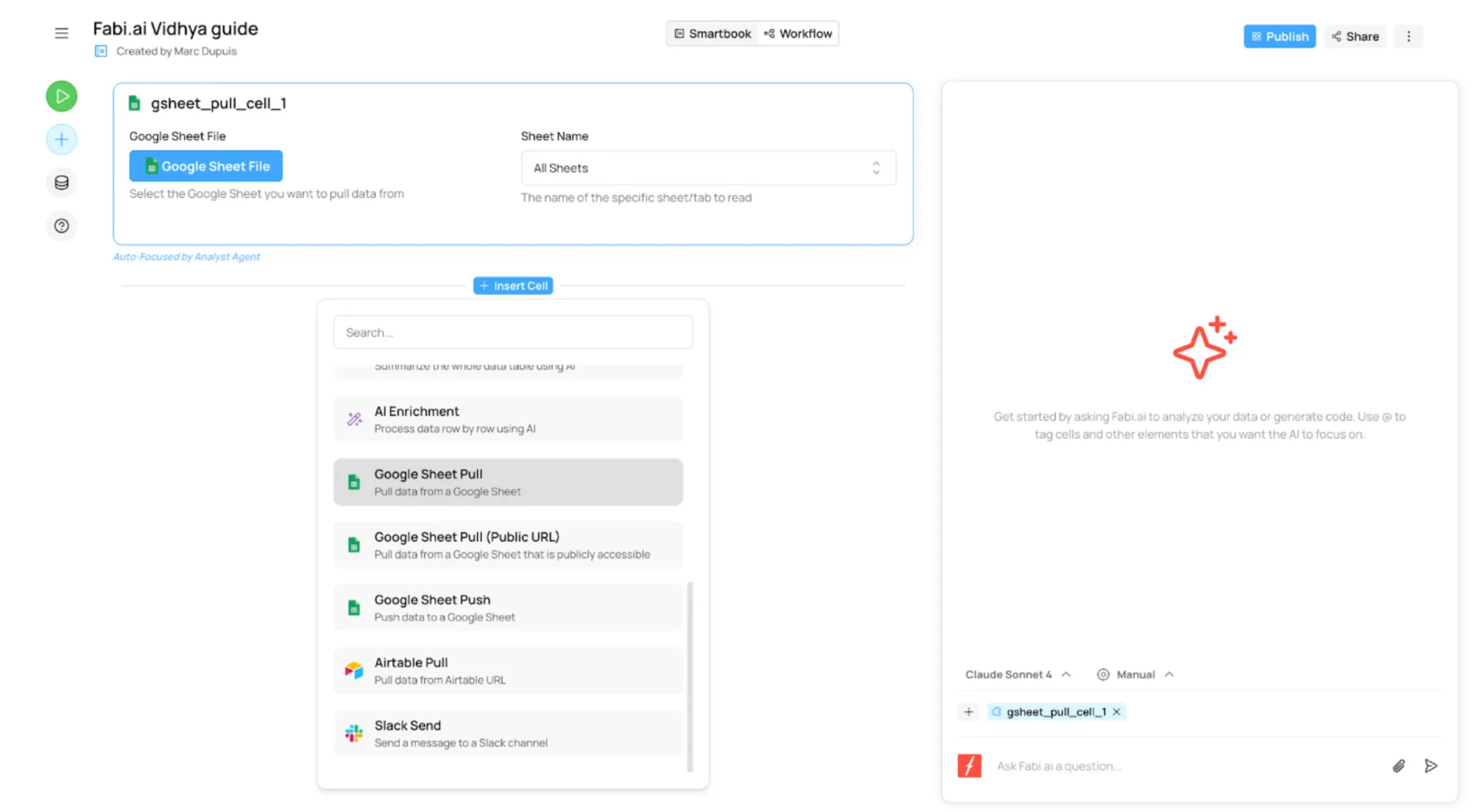
Once you’ve authorized Fabi to access your Google Drive, search for the file containing your data. In this case, we’re using a publicly available dataset, so we’re going to use the Google Sheet Pull (Public URL) cell, which doesn’t require authentication.
Copy/paste the sheet URL in the cell and give your output Python DataFrame a name (eg. “product_review_data”). After running that cell, the data will be stored in Fabi as a Python DataFrame, which you can now use AI to analyze.
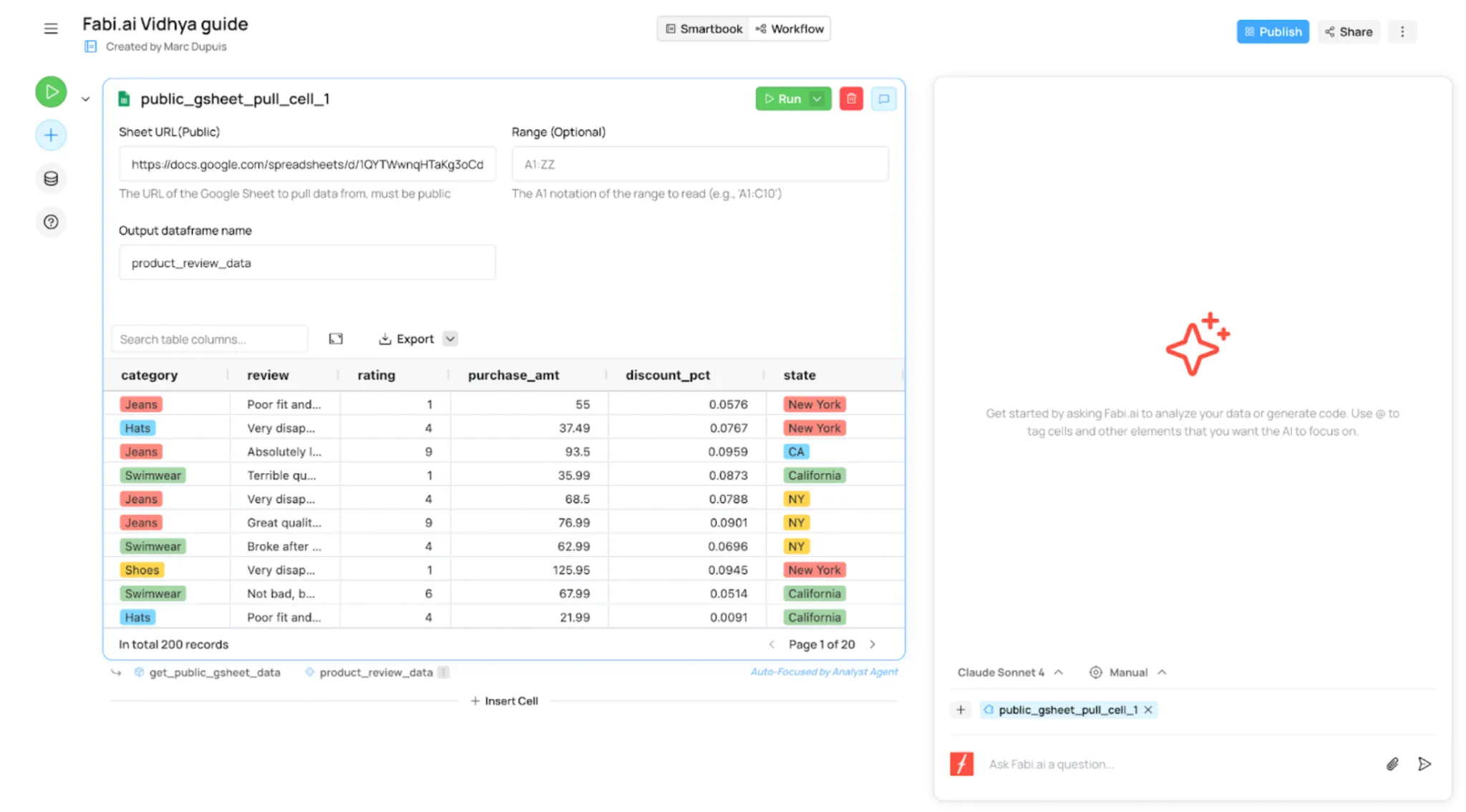
Initial Exploratory Data Analysis and Data Cleaning
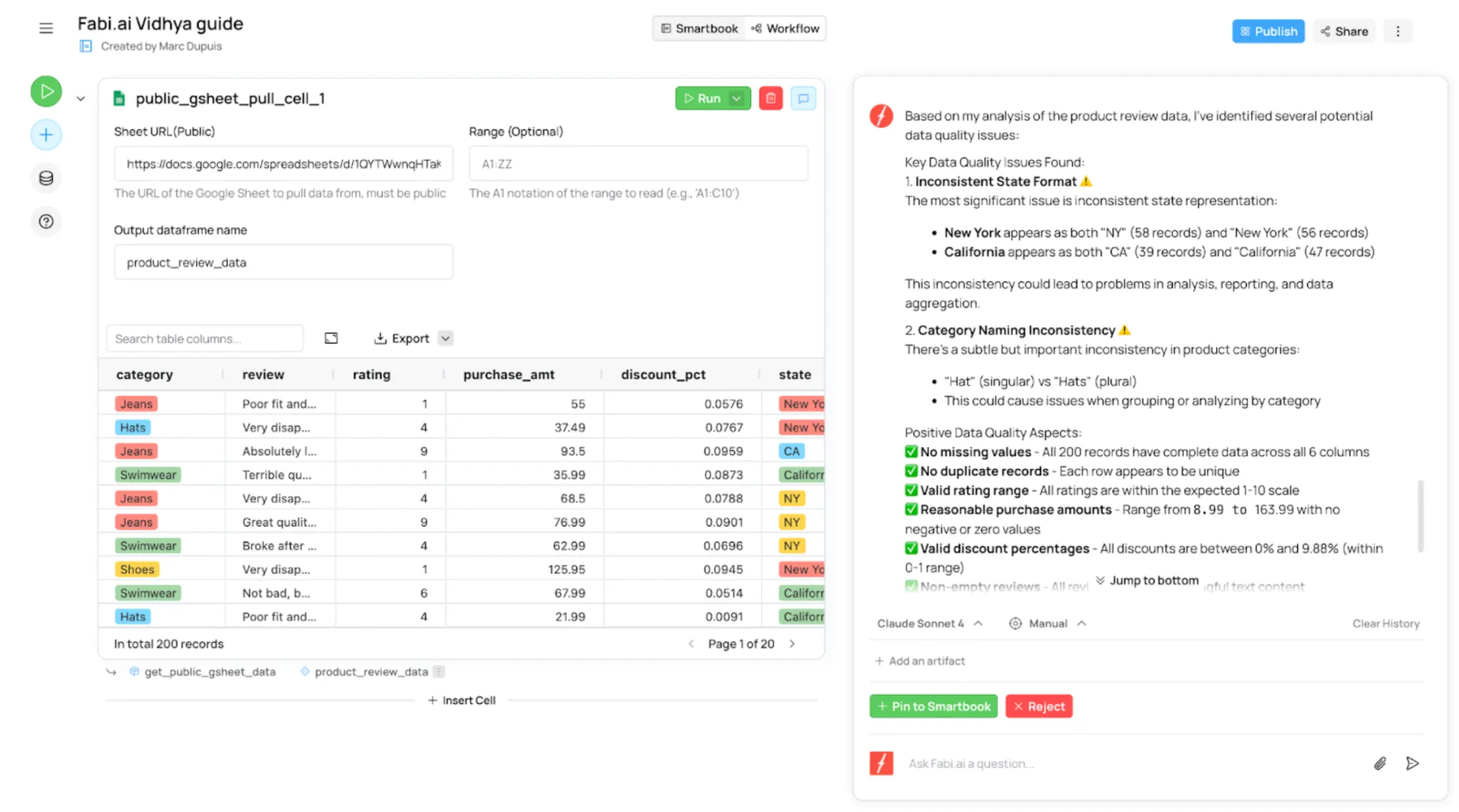
Before starting sentiment analysis, we need to confirm that the data is clean. I asked the AI: “What are some potential issues with the data?” and it flagged two right away:
- Inconsistent state formats (“NY” vs. “New York”)
- Inconsistent category names (“Hat” vs. “Hats”)
These kinds of problems are common in real-world data. AI makes it easy to quickly surface such issues before moving on with analysis.
Not only can AI help spot potential issues, but it can also help address them. Let’s ask the AI to fix these issues for us: “Please clean up the data based on these findings.”
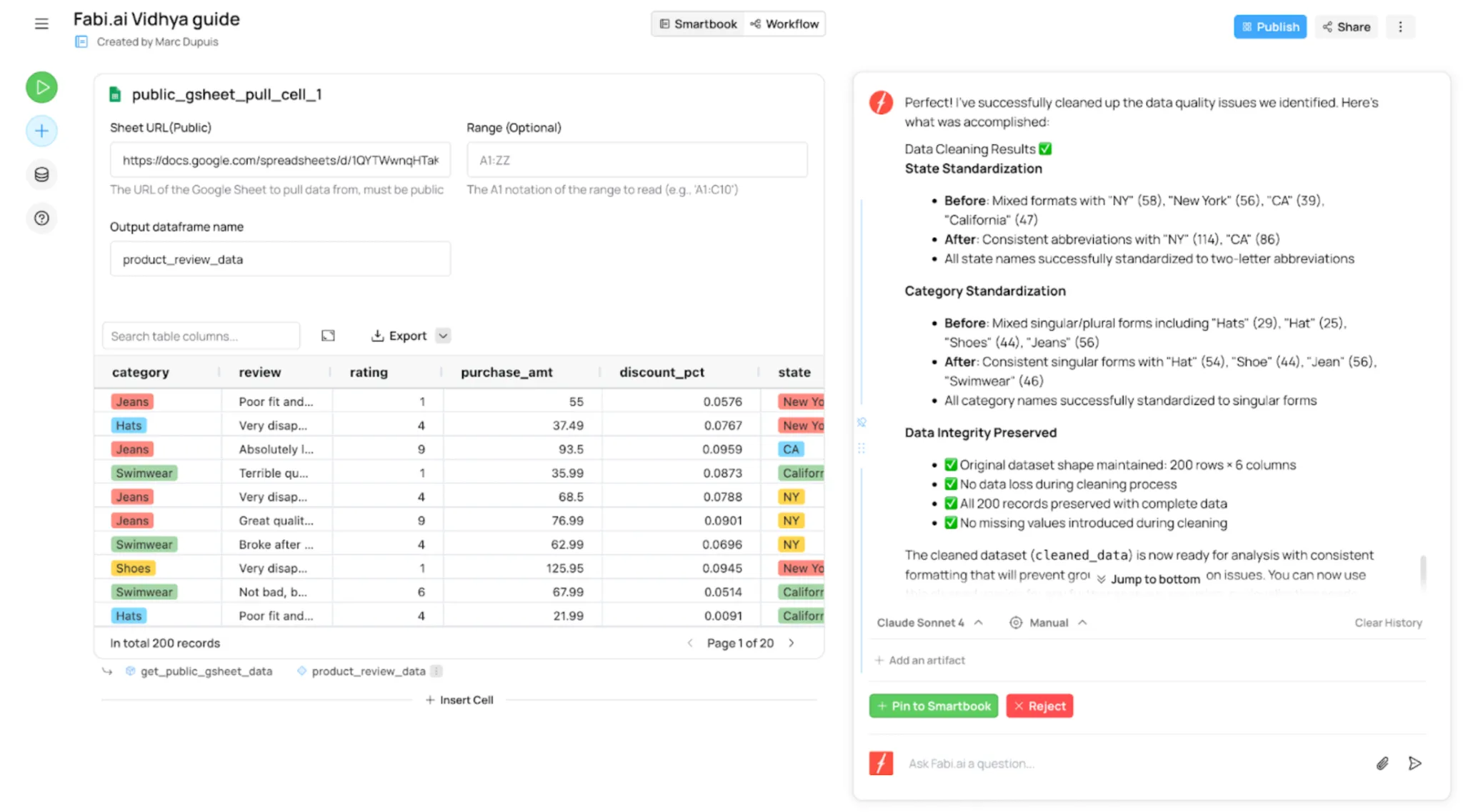
The AI will generate either SQL or Python code to address any issues identified. If you’re running the Fabi AI Analyst Agent in manual mode (as opposed to auto-accept mode), you’ll be prompted to accept or reject the AI suggestions.
In this case, let’s accept the AI suggestions, which will add the appropriate Python cell to your Smartbook.
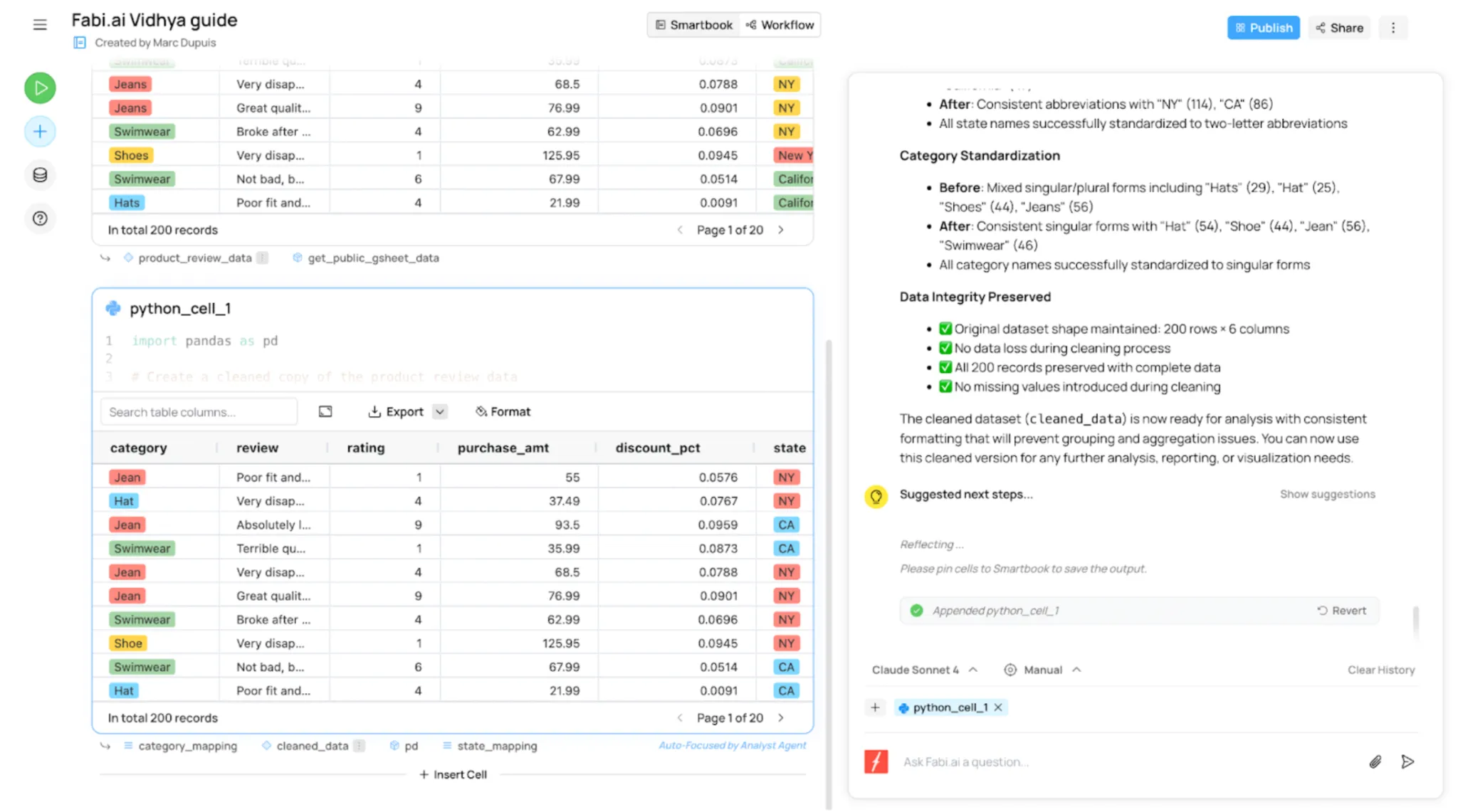
We now have a new Python DataFrame called “cleaned_data”.
At this stage, it’s also good to manually inspect the data and make sure the AI didn’t miss any other potential issues. And if the AI did miss any issues, you can ask it to update the cleaning script to account for those.
Sentiment Analysis
With cleaned product review data, we can start sentiment analysis by adding a “review_sentiment” field to classify each review as positive, negative, or neutral. Large language models with Python are ideal for this.
Add an AI enrichment cell under your cleaning step. These cells take a DataFrame, a field, and a prompt, then return the DataFrame with a new column based on the prompt.
Here, use “cleaned_data” with the “review” field, outputting “cleaned_data_categorized” with “review_sentiment.” Prompt: Categorize the product review as positive, negative, or neutral. Switch from Preview to Run and execute.
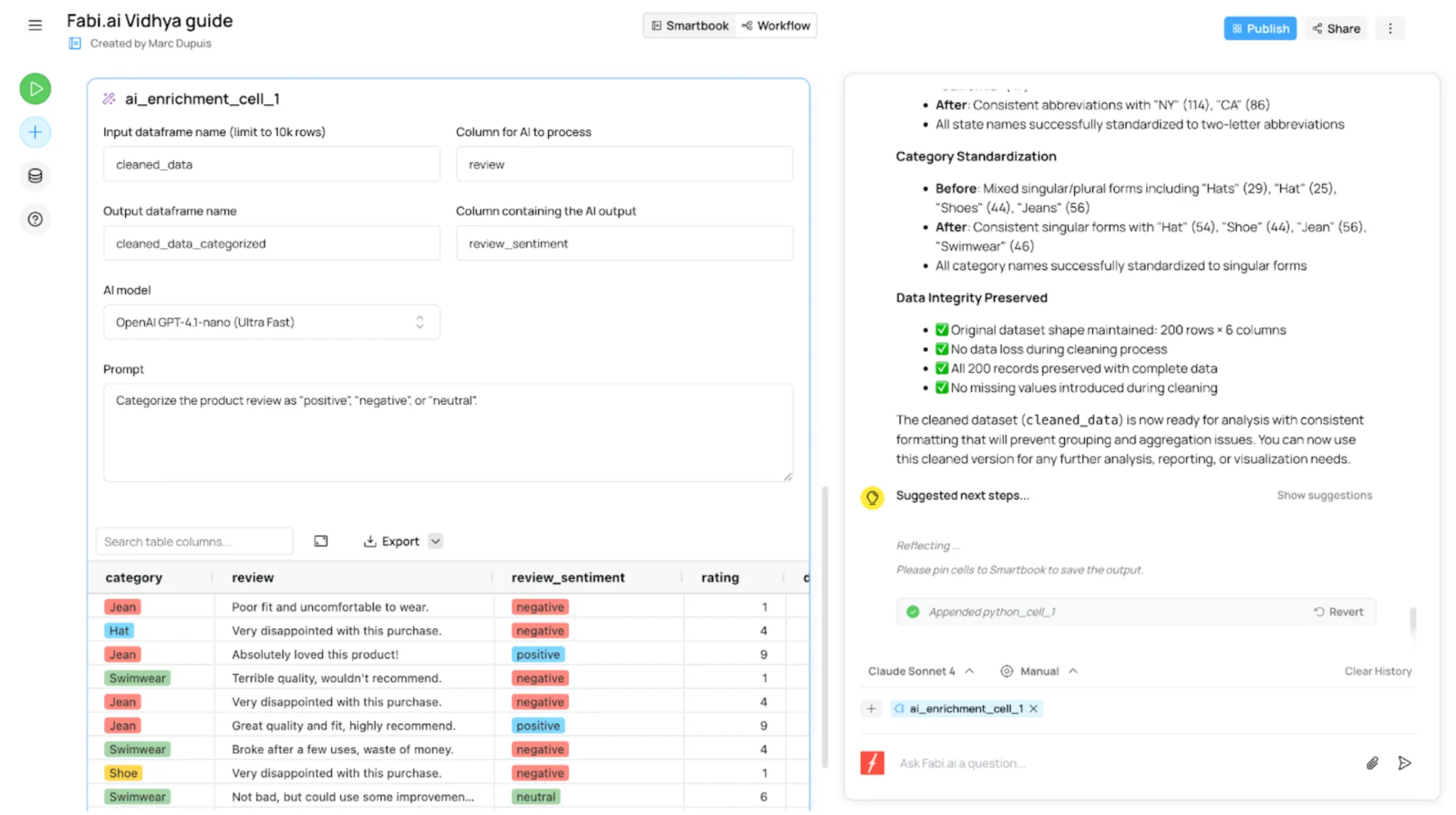
After running this AI enrichment cell, you’ll have your new DataFrame that has a new field that contains the sentiment category for each review. This is now conveniently formatted in such a way that you can analyze the data in a more structured way. Let’s ask the AI to plot the percent of reviews in each category as a 100% bar chart.
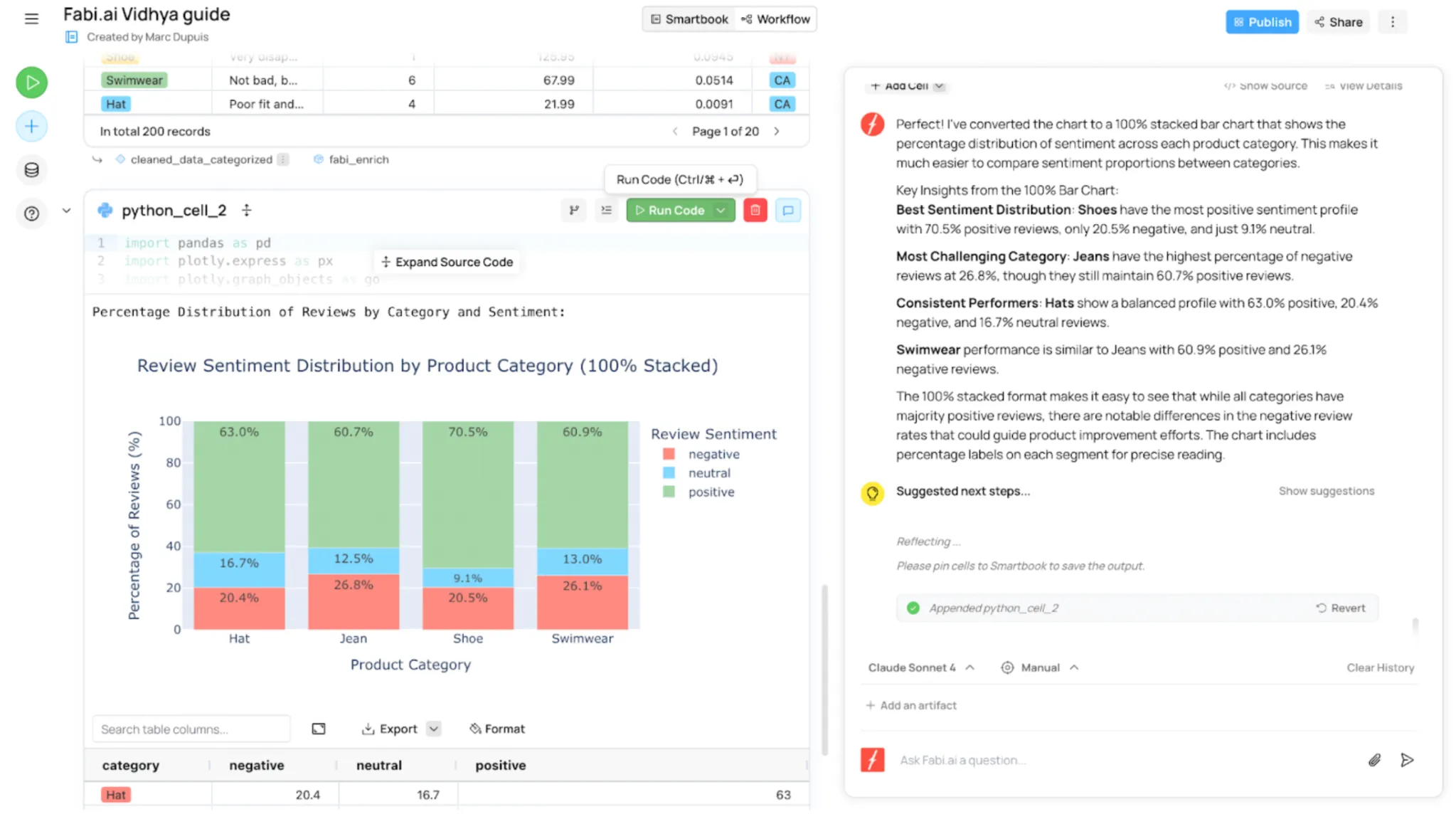
We immediately notice a few things:
- Jeans and swimwear have the most negative reviews as a proportion of all reviews
- Shoes have the most positive reviews as a proportion of all reviews
As a marketer or product owner, equipped with this information, I can now dig into our jean and swimwear lines to understand where the dissatisfaction comes from and talk to the sales and marketing team to figure out how to capitalize on the positive reviews for shoes or double down on that product line.
Sharing Your Work
Your data analysis is only as good as your ability to share your findings with your coworkers. It’s now time to turn your work into a data app or spreadsheet that you can share. We’ll show you how to take both approaches.
Turning Your Fabi Notebook Into a Data App
If you want to share your analysis as an interactive data app, simply click the “Publish” button in the top right-hand corner (in this guide, we won’t touch on how to add inputs or filters to your data app, but you can easily do this in just a few minutes). In this staging area, you can hide, move, and resize tables and charts.
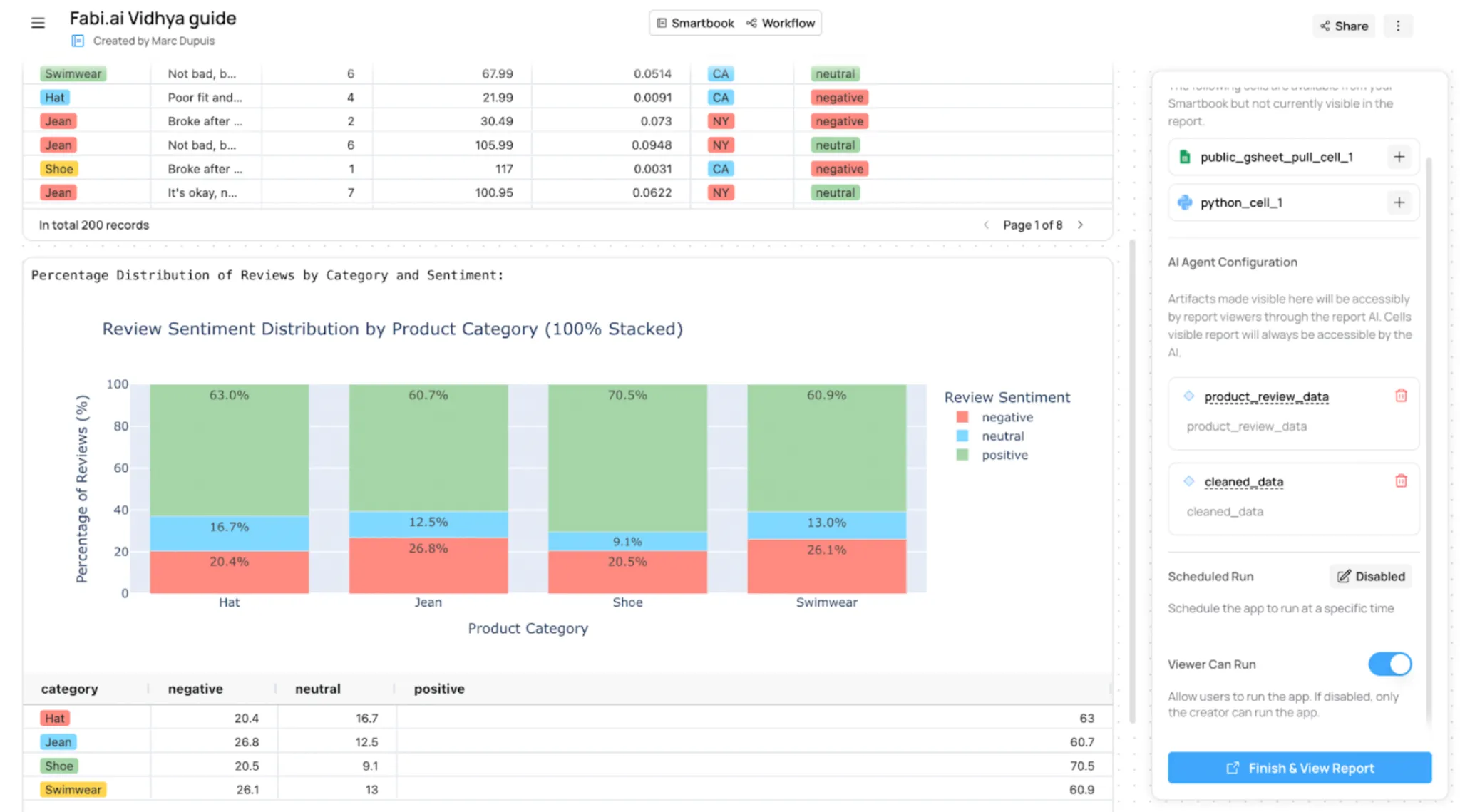
Once your data app looks the way you want it to, you can schedule it to refresh at any cadence you want. Finally, once you’re ready for it to go live, click “Finish & View Report”. From here, you can give access to this report to any coworker or your entire organization using the “Share” functionality.
Syncing Your Analysis With Google Sheets
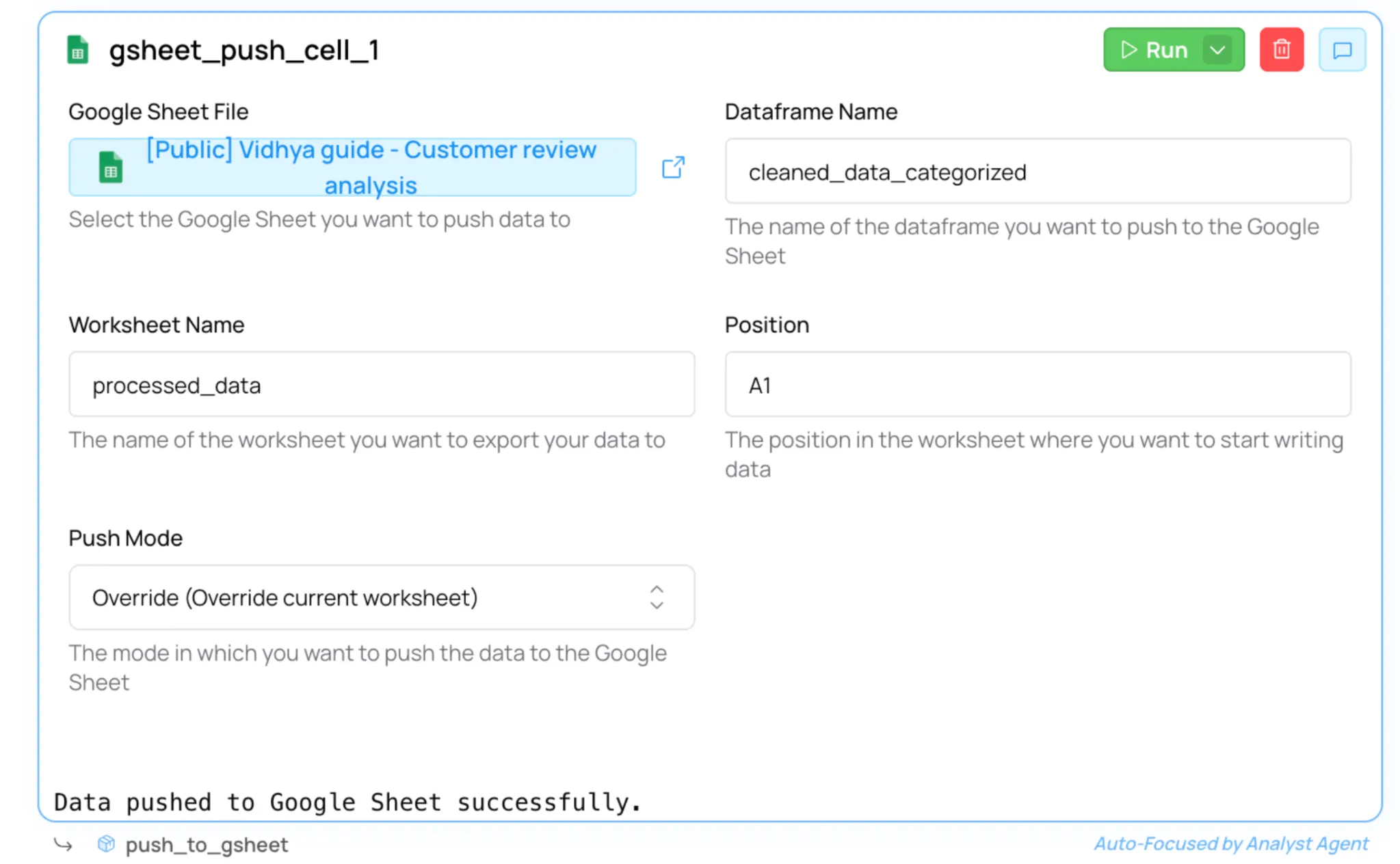
If you would rather sync this enriched data to another destination that your stakeholders like to work out of, such as Google Sheets, you can add an output cell. At the bottom of your Smartbook, add a “Google Sheets Push” cell and select the “cleaned_data_categorized” DataFrame and the Google sheet you want to sync the data to.
Key Takeaways
- Data sources: Analyze data from a warehouse, database, Google Sheet, or local CSV/Excel file.
- AI for EDA and cleaning: Ask Fabi’s AI Analyst Agent to spot issues and clean your data.
- Sentiment analysis: Use AI enrichment cells to categorize freeform text in a DataFrame.
- Python data apps: Publish findings as interactive dashboards to share with coworkers.
- Automating syncs: Push processed review data back to Google Sheets for collaboration.
Conclusion
In this guide, we explored an efficient way to perform sentiment analysis using AI and Python in the AI-native data analysis platform Fabi.ai. You saw how easy it is to pull product review data from Google Sheets, explore and clean it with AI-generated Python code via Fabi’s AI Analyst Agent, run sentiment analysis with an LLM, and share results as an interactive Python app or Google Sheet.
Login to continue reading and enjoy expert-curated content.