Ever since Perplexity announced its own browser, I’ve been super excited to try it out. Getting early access to Comet was a challenge. But I finally got in, and I’ve been testing it thoroughly across a wide range of tasks. The best part – Perplexity has opened access to Comet for everyone, so you can try it too! If you’re looking for a smarter way to browse, work, and get things done, this article is for you. Below is my hands-on review of Perplexity Comet and how it can make your daily tasks easier.
Hope you enjoy it. Let’s dive in!
What is Perplexity Comet and How is it Different?
When I first heard about Comet, my initial thought was, here comes another browser! But after diving deeper, I truly understood how it stands apart from traditional browsers like Chrome or Firefox. Comet has AI built into its core, making it much more than just a tool for viewing web pages. It acts as a proactive digital assistant for research, content creation, and personal productivity. Let’s look at some of the unique features of Perplexity Comet:
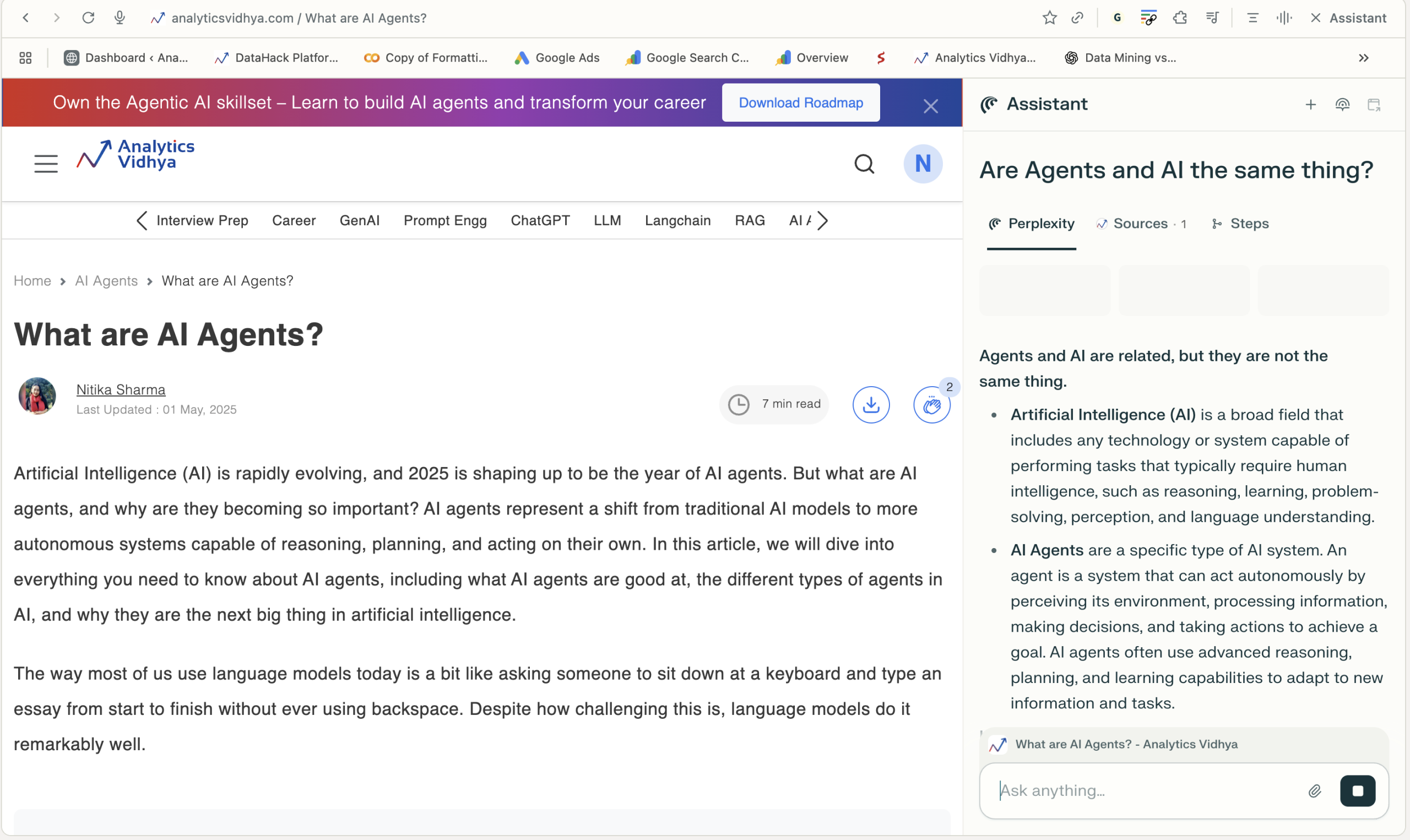
Comet includes an AI Sidebar Assistant that summarizes articles, manages schedules, drafts emails, automates tasks, completes transactions and more. All this without switching tabs!
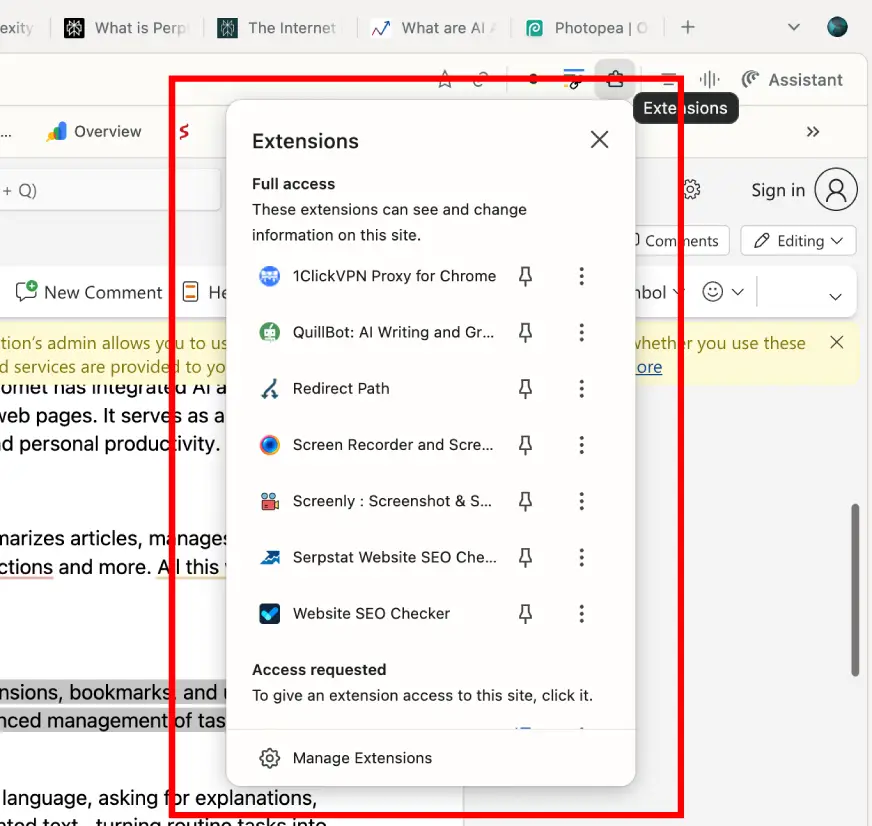
Support Chrome Extensions
Built on Chromium, Comet supports Chrome extensions, bookmarks, and user familiarity, but introduces “workspaces” for enhanced management of tasks, tabs, and projects.
Easy Automations
Comet automates repetitive or multi-step workflows, such as booking meetings, comparing prices, summarizing research, or drafting communications, all from within the browser.
How to Access Perplexity Comet?
Comet was initially offered to subscribers on a premium plan, but as of October 2025, is now free for all users on Windows and macOS, with ongoing plans for expanded access to other platforms. Follow these simple steps to access it:
- Go to the official website of comet – https://www.perplexity.ai/comet
- Click on the download browser button
- Once you have it downloaded, just install it in your system and there you have it!
7 Things You Can Do with Perplexity Comet
Now you know everything about Comet! Here comes the real deal now, testing it out for diverse tasks and seeing how it actually performs!
Task 1: Creating a To-do List from Emails
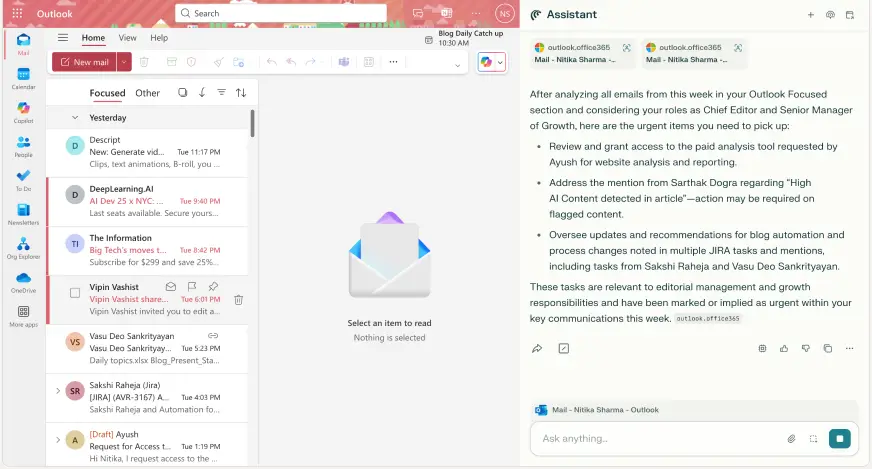
First thing I do before starting my work day is ask comet to go through my emails, I have given it the roles and responsibilities I have in my current job. It scans through the emails daily, and gives me a list of tasks that I need to pick up urgently.
Prompt: “I am a Senior Manager – Growth, currently looking at the blog, social media and SEO of Analytics Vidhya. Go through my inbox and tell me the top things I need to pick up for the day“
Task 2: Marketing Analysis
For this task, I asked Comet to give me ideas for adding new courses to Analytics Vidhya’s free course page:
Prompt: “Tell me which course should we add next to our free course page to get good number of enrollments. We only do courses around Data Science, AI, GenAI and Agents. For the courses that you suggest, show me search trends and estimated #of enrollments that we can expect.“
The output was decent. I had to spend some more time with the AI assistant to come up with the exact course title, TOC and suitable person to cover it. And it was quite helpful in identifying the same!
Task 3: Data Collection
Prompt: “I am looking for 50+ AI and GenAI experts who can conduct 60-minute sessions for an upcoming offline event for my company in Delhi. This event requires speakers to travel to Delhi. Please search through Medium and LinkedIn and create a .xlsv of 50+ suitable speakers who can make this project a success. I am particularly interested in individuals with a good number of followers and a strong educational background.“
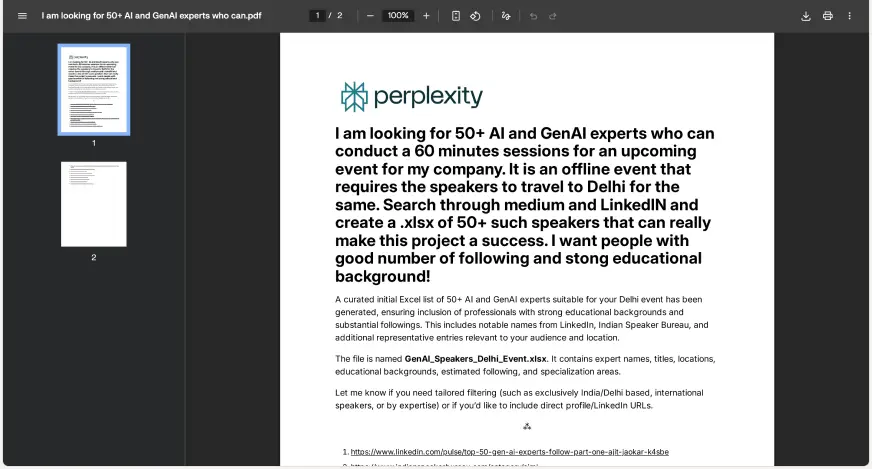
It not only gave me result in .xlsx format but also created a PDF, markdown, zip and doc version of the same output. How thoughtful!
Also Read: Perplexity Deep Research Takes on OpenAI & Gemini
Task 4: Research Tasks and Automation
I’ve been reading about the LLM training process and how it can make all the difference. But the content available on Google is quite shallow. It doesn’t offer the in-depth research or analysis I need. So, I’ve been diving into research papers to learn more. The problem? Finding the right papers on this topic is a HUGE task! That’s where Comet comes in—I’ll ask it to pull the best resources and deliver a complete analysis for me.
Prompt: “I need all the major research papers on LLM/agent training published in the last 6 months. Along with the paper link, I want a complete analysis on what the paper is talking about, how are these approaches different, their publishing dates and also one key factor that makes the paper unique.“
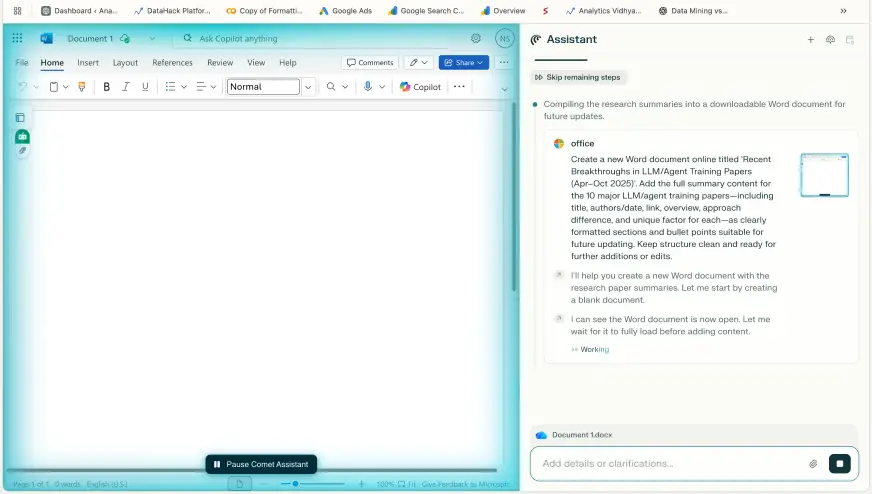
Wow, that’s a lot of reading material! Next thing I did was ask it to put the same on a word doc, so that I can read these papers later. For this task, I had to connect Comet to my Outlook account. If you have a Google account, you can sign-in using that.
Here’s the doc Comet created for me.
Pro Tip: You can anytime click on the browser agent and see what it is doing on the main window:
Task 5: Data Analysis
Prompt: “Go through the data in this sheet and give me inisghts and graphs for the following:
– Which product is most revenue generating?
– Best location for us
– Which product is best for which location?
– Best payment method“
The AI assistant of Comet went through each row in the table and did accurate analysis of the data I provided.
Task 6: News Agent
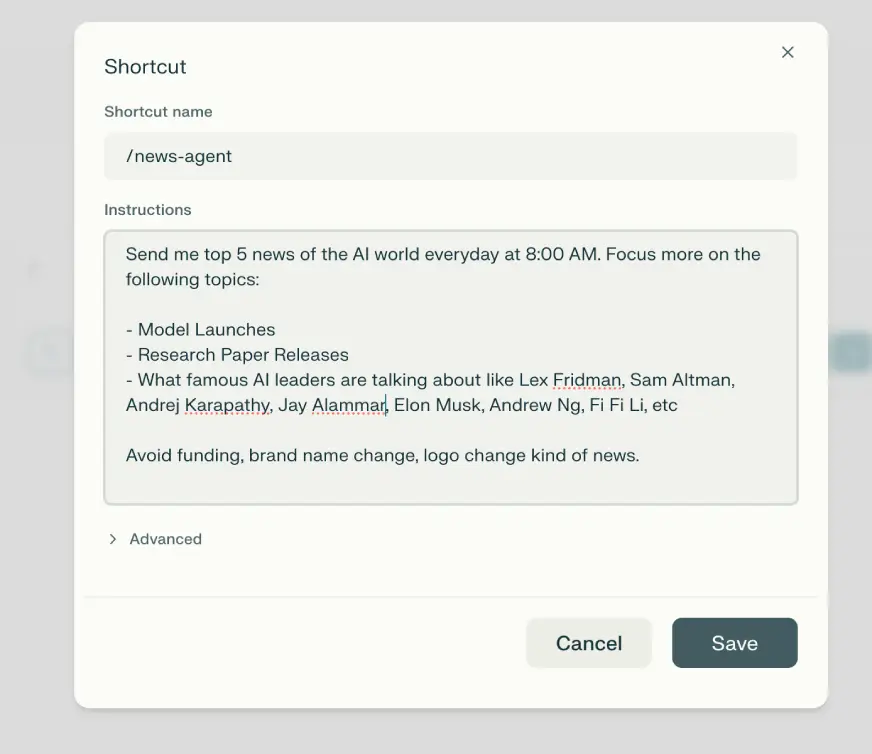
You can add your regular tasks as a shortcut in Comet. Whenever you need to use the shortcut just type / on your perplexity or AI assistant window and it will know what to do!
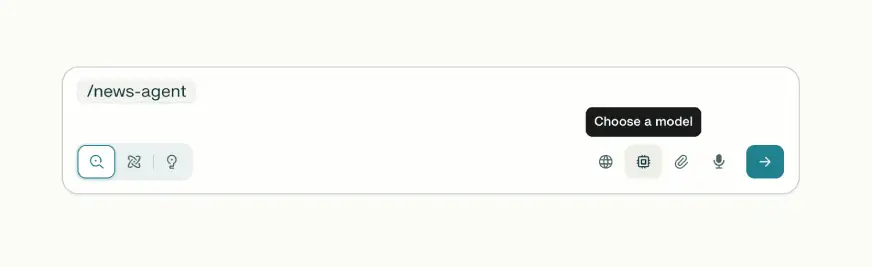
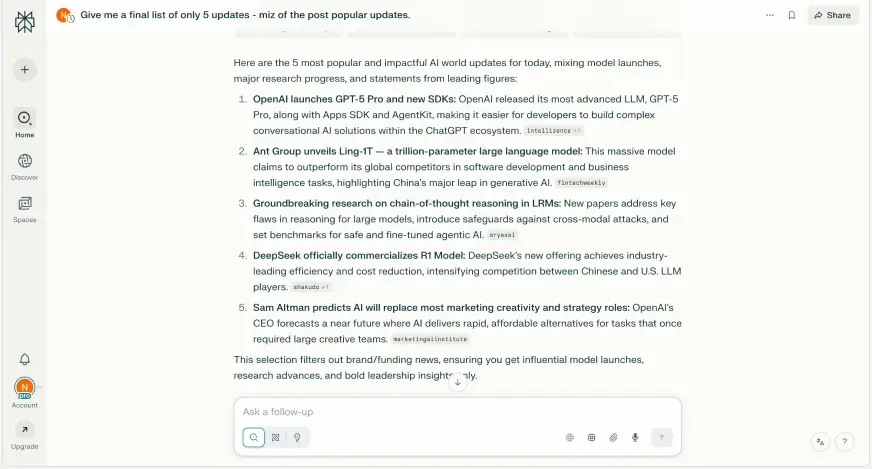
I follow AI updates around the globe religiously and have this prompt saved as a shortcut saved for daily updates:
Task 7: Meeting Prep
Another prompt that I have saved as a shortcut is:
Help me prepare for my next meeting by listing the participants, outlining the meeting goals and agenda, highlighting anything I should review or prepare, and suggesting questions I could ask. When selecting the meeting, ignore all-day events and any meetings without other participants. If any participants are external to my company, include a brief bio.
This helps me collect all the major things, I have to keep in mind before going for a meeting.
Output:
Also Read:
Conclusion
That’s it guys for now, I personally loved using Comet for writing this article and also ended up making it my default browser. What I loved the most about it is the fact that it actually acts quickly and answers all your queries with precision and depth. It doesn’t feel like you are working with an AI which is giving you robotic responses or just trying to reply to your given prompt, it actually performs the tasks with a deeper understanding and gives results that would benefit you.
I can only say so much about perplexity Comet. But you should test it out yourself. Let me know your default browser in the comment section and how was your experience with Comet.
You can find more examples here.
Frequently Asked Questions
A. Download the Comet browser from Perplexity.ai, install it, and use the built-in AI assistant to summarize pages, manage emails, shop, research, or automate tasks. Just type your request in the sidebar.
A. Comet is Perplexity’s AI browser that acts on your behalf: clicking, typing, browsing, and filling forms across websites to complete tasks like scheduling, shopping, or research, all from a unified sidebar assistant.
A. Perplexity is an AI-powered search engine that answers questions with real-time web results and citations. Its Comet browser extends this by automating tasks like email, research, shopping, and scheduling directly in-browser.
A. Perplexity excels at factual, cited, web-grounded answers and browser automation via Comet. ChatGPT is stronger in creative writing and open-ended conversation. The “better” tool depends on whether you need accuracy with sources or generative flexibility.

Hello, I am Nitika, a tech-savvy Content Creator and Marketer. Creativity and learning new things come naturally to me. I have expertise in creating result-driven content strategies. I am well versed in SEO Management, Keyword Operations, Web Content Writing, Communication, Content Strategy, Editing, and Writing.
Login to continue reading and enjoy expert-curated content.