The Apple Watch is all about quick, glanceable information – your split time on your morning jog, message alerts when your friends get in touch, the latest updates from the weekend’s big games. With just a swift glance at your wrist, you’ve got all the info you need.
Live Activities make that even easier. This feature allows apps running on your iPhone to display pertinent data on your Watch face. But there’s a problem: Live Activities take over your entire Watch screen. If you want to use a different app or just want to tell the time, you’ve got to dismiss the Live Activities first. They get in the way and slow you down.
I find this particularly annoying when I’m on a morning run or walk. I like to listen to podcasts when I’m out of the house, and launching an episode from an app like Overcast brings up a Live Activity on my iPhone.
Unfortunately, it also brings up a Live Activity on my Watch. That’s a problem because rather than seeing how far through an episode I am, I would much rather have an unobstructed view of my Watch face, but this gets obscured by the podcast Live Activity. As a result, my Watch is instead taken over by something I would much prefer to control on my iPhone.
Fortunately, there’s a way to prevent Live Activities from hijacking your Watch without disabling the feature on your iPhone. It’s quick and simple to do and means you get an unobstructed view of your Watch face, even when an app is running. Better yet, there’s plenty of extra customization available should you need it. Let’s take a look at how it’s done.
How to rein in Live Activities

To stop Live Activities opening apps on your Watch and instead just show your Apple Watch’s face, follow the steps below:
- On your Apple Watch, open the Settings app
- Now go to General > Auto-Launch > Live Activities Settings
- Within this menu, disable the toggle next to Auto-Launch Live Activities
And that’s it. Now when an iPhone app brings up a Live Activity, it’ll only do so on your iPhone, not on your Apple Watch. And if you change your mind, all you need to do is re-enable the toggle you switched off in step 3 above.
The best bit is there’s still a quick and easy way to access Live Activities, even after you’ve disabled them: just swipe up from the bottom of your Watch’s screen. As long as there’s a Live Activity running on your iPhone, it’ll now be visible on your Watch. To dismiss it, just swipe down or press the Digital Crown. It’s all still accessible, it just won’t take over your display by default.
Further customization
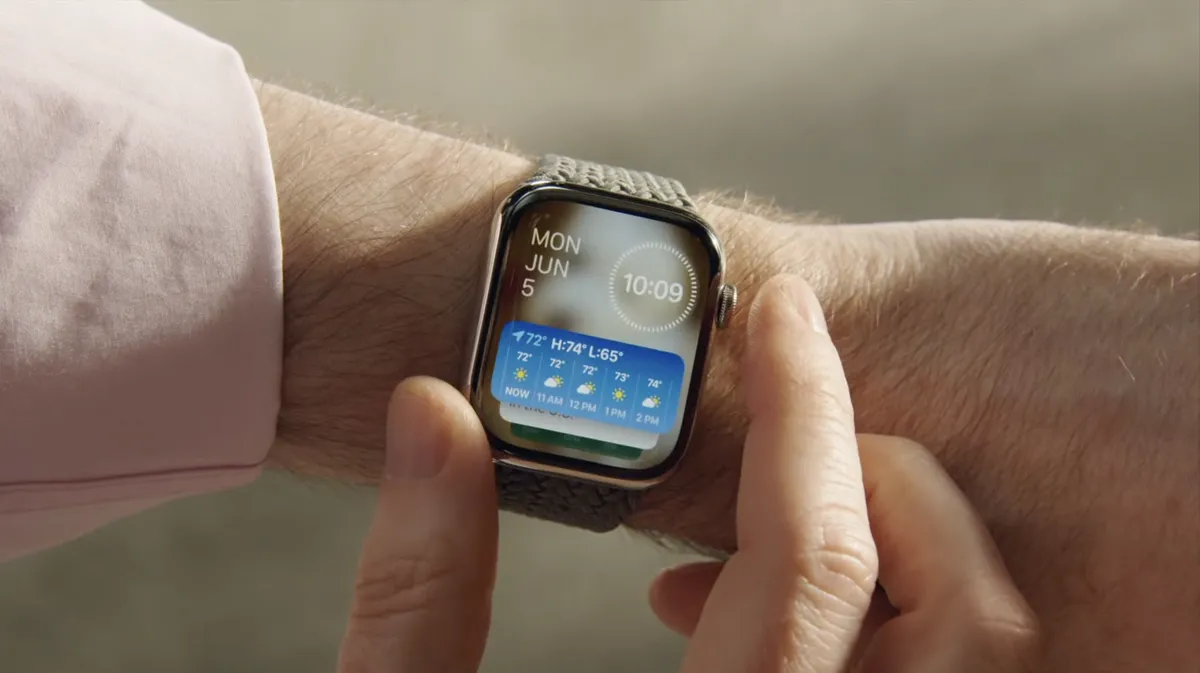
Apple doesn’t just leave things there – it gives you more controls to tweak Apple Watch Live Activities to your liking.
For instance, scroll down the Settings page and you’ll see an option to show Live Activities if your wrist is down. This is enabled by default, but can be switched off.
Scroll down further and you’ll find sections for media apps, as well as entries for individual apps that you have installed on your Watch. Tap one of these sections and you can switch off Live Activities for selected apps while allowing them for all others, giving you plenty of granular control over how Live Activities are displayed on your wrist.
A small change that makes all the difference
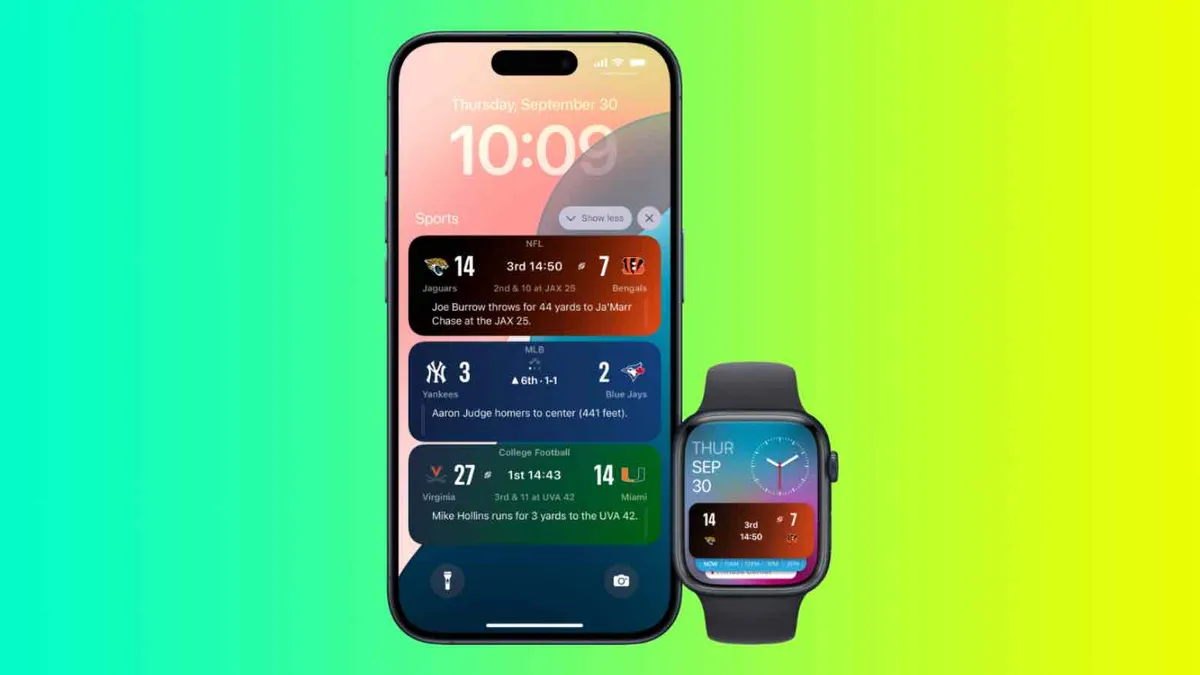
With a few of these settings adjusted, I feel like Live Activities are much more under control on my Apple Watch. They’re reined in and only appear when I’d like them to, allowing me to enjoy my morning podcast while still getting a clear view of my Watch face whenever I need to.
If you’ve previously despaired of Live Activities or wondered why they insist on taking over your Watch at every opportunity, changing a few settings can help put things right in just a few taps.
And you don’t even have to lose Live Activities when you follow these steps – a simple swipe up from the bottom of your Watch screen restores the Live Activity, ready for when you need it.
Follow TechRadar on Google News and add us as a preferred source to get our expert news, reviews, and opinion in your feeds. Make sure to click the Follow button!
And of course you can also follow TechRadar on TikTok for news, reviews, unboxings in video form, and get regular updates from us on WhatsApp too.