Understanding the 3D space is a key challenge in AI. This lies at the border of robotic and agent interaction with the physical world. Humans can easily identify and relate to objects, depth, and have an inherent understanding of physics in most of the cases. This is often termed as embodied reasoning. And to understand the world like humans AI must develop this capability to be able to infer a 3D structure of the environment, identify objects, and plan actions.
Google’s Gemini models are now at the frontier of this newly learned ability. They are learning to “see” in 3D and can physically point to items and plan spatially in a manner that a human would. In this article we’ll explore how LLM’s like Gemini understand the 3D world and dive into the different viewpoints of spatial understanding to demonstrate how Gemini’s have a human-like quality of perception.
Foundations of 3D Spatial Understanding
3D spatial understanding is the ability to recognize information from the physical sensors. To do so, the model has to reason about depth, object locations, and orientations, other than just recognizing the learning spatial relations. Learning 3D spatial relations often requires the use of geometric principles, such as projecting 3D points onto a 2D picture, with keeping in mind of depth, such as shading, lines of perspective, and occlusion.
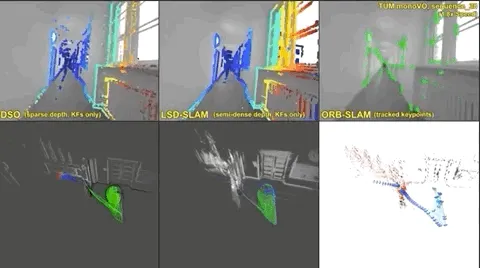
The classical approach in robotics might use stereo-vision or LiDAR to recover a 3D scene. For this there lies an advanced method called the SLAM method which helps to find the 3D relations. However, modern AI simply learns to directly predict the 3D relationship from the data itself. And the Gemini is trained on large-scale training data therefore, it sees millions of pairs of images and captions, and this helps it assigning language to visual features.
Furthermore, the LLM’s can detect bounding boxes via the prompts or open-ended text. It distinguishes itself by use of its representation space, and treats coordinates as tokens in its output, and more importantly, Gemini 2.0 was designed as an embodied model. It needs to implicitly learn to associate the pixels in the projected image, the language, and the spatial concepts together.
Core Foundational Elements
Gemini uses a form of spatial intelligence that includes several main concepts. These concepts collectively connect pixels, or learned representations of the visual field, to the spatial world. These includes:
- Projection & geometry: The AI utilizes its understanding of a 3D-to-2D projection. It learns to identify the typical shapes of objects as part of its training. It also learns how perspective affects the foreshortening of those shapes.
- Multi-view cues: Viewing the same object from multiple views helps triangulate depth. Gemini can take in a variety of images of the same scene. It can then use different perspectives and angles when it generates 3D reasoning.
- Explicit coordinates: The model can produce explicit coordinates. It directly represents 2D points as a [y, x] pair. It outputs 3D boxes as a [x, y, z, w, h, d, roll, pitch, yaw] meter-based representation. This lends itself to downstream systems being able to access and use the output directly.
- Language grounding: It links spatial perceptions to semantic meanings. It answers questions about the image in words and structured data. For instance, it can recognize “left of the pan” and point to the right area.
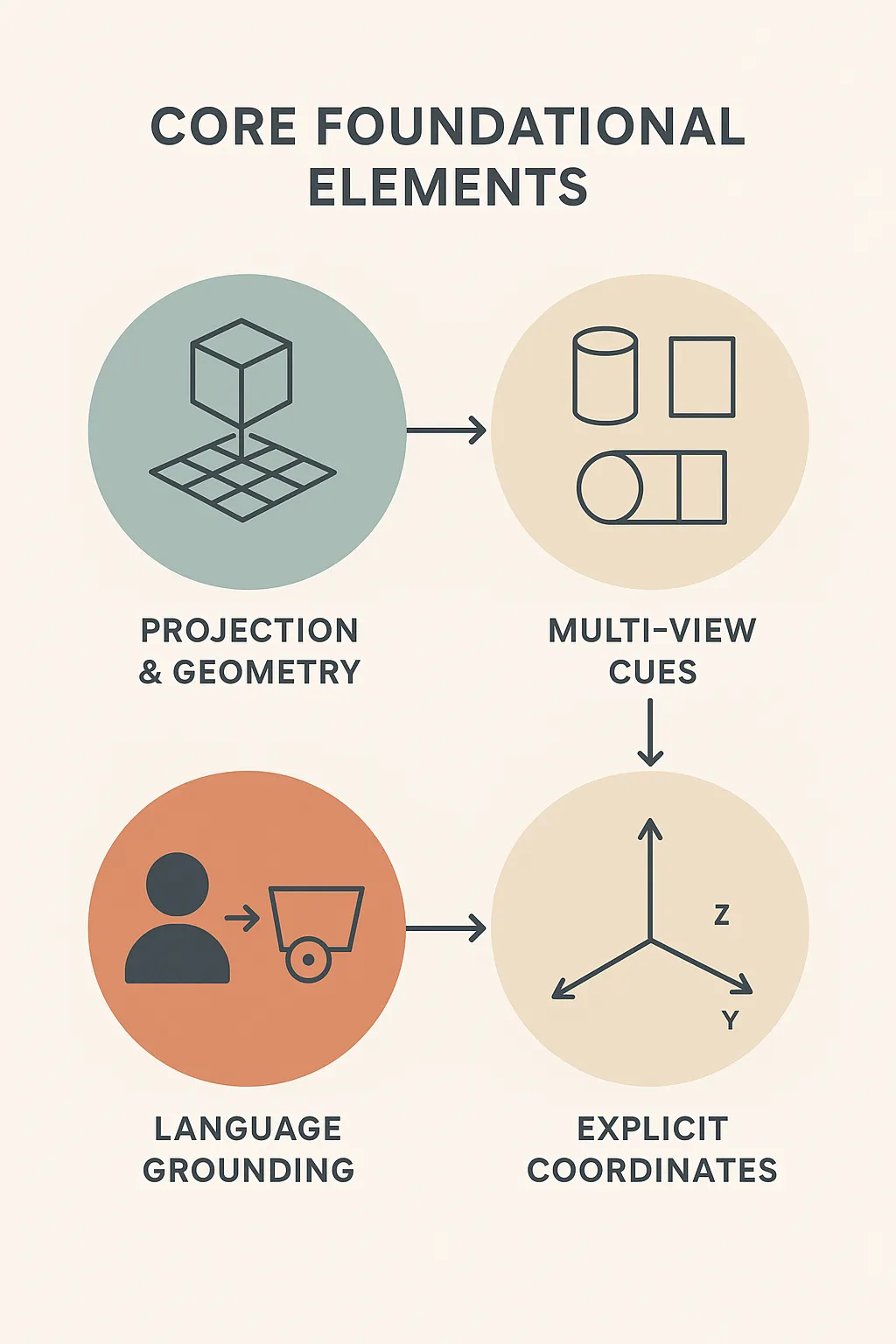
This mix is the foundation of the Gemini’s spatial intelligence. The model learns to reason about scenes in potential meanings of objects and coordinate systems. This is quite similar to how a human may represent a scene with points and boxes.
How Gemini Sees the 3D World
Gemini’s vision skills extend beyond that of a typical image classifier. At its core, Gemini can detect and localize objects in images when asked. For example, you can ask Gemini to “detect all kitchen items in this image” and it will provide a list of bounding boxes and labels.
This detection is open vocabulary. This means the model is not restricted to a fixed set of categories and will find items described in the prompt. One time, the prompt asked Gemini to “detect the spill and what can be used to clean it up.” It was able to accurately detect the liquid spill as well as the towel that was nearby, even though neither object was explicitly referred to in the prompt. This demonstrates how its visual ‘seeing’ is deeply connected to semantics.
But Gemini goes even further! It can infer 3D information contained in 2D images.
For example, given two views of the same scene, Gemini can match corresponding points, achieving a kind of rough 3D correspondence, given both views. It was able to detect that a red marker on a countertop in one view was the same red marker on the table in the other view.
How Gemini Detects Objects with 3D Bounding Boxes
This capability of 3D access is available through the API. A developer can request structured 3D data. In the example below (built on top of Google’s Gemini Cookbook), a developer asks Gemini to “show these boxes.”
from google.colab import userdata

GOOGLE_API_KEY=userdata.get('GOOGLE_API_KEY')

from google import genai

from google.genai import types

from PIL import Image

# Load sample images

!wget https://storage.googleapis.com/generativeai-downloads/images/kitchen.jpg -O kitchen.jpg -q

# Loading the API

client = genai.Client(api_key=GOOGLE_API_KEY)

# Load the selected image

img = Image.open("kitchen.jpg")

# Analyze the image using Gemini

image_response = client.models.generate_content(

   model=MODEL_ID,

   contents=[

       img,

       """

      Detect the 3D bounding boxes of no more than 10 items.

      Output a json list where each entry contains the object name in "label" and its 3D bounding box in "box_3d"

      The 3D bounding box format should be [x_center, y_center, z_center, x_size, y_size, z_size, roll, pitch, yaw].

    """

     ],

   config = types.GenerateContentConfig(

    temperature=0.5

   )

)

# Check response

print(image_response.text)Output:
[{"label": "oven", "box_3d": [-0.14,3.74,-0.71,0.76,0.59,1.08,0,0,0]},
{"label": "sink", "box_3d": [-1.07,2.09,-0.34,0.18,0.47,0.12,0,0,-6]},
{"label": "toaster", "box_3d": [-0.94,3.84,-0.18,0.27,0.16,0.2,0,0,1]},
{"label": "microwave", "box_3d": [1.01,3.8,-0.2,0.43,0.31,0.26,0,0,2]},
{"label": "coffee maker", "box_3d": [0.7,3.78,-0.18,0.2,0.32,0.3,0,0,53]},
{"label": "knife block", "box_3d": [-0.89,3.74,-0.22,0.1,0.25,0.21,0,0,-53]},
{"label": "range hood", "box_3d": [-0.02,3.87,0.72,0.76,0.47,0.48,0,0,-1]},
{"label": "kitchen counter", "box_3d": [-0.93,2.58,-0.77,0.59,2.65,1.01,0,0,0]},
{"label": "kitchen counter", "box_3d": [0.66,1.73,-0.76,0.6,1.48,1.01,0,0,0]},
{"label": "kitchen cabinet", "box_3d": [0.95,1.69,0.77,0.33,0.72,0.71,0,0,0]}
Now the Gemini has pointed out the exact bounding box points, now we’ll create an html script that will create 3D bounding boxes over the things detected by Gemini.
import base64

from io import BytesIO

def parse_json(json_output):

   lines = json_output.splitlines()

   for i, line in enumerate(lines):

       if line == "```

           json_output = "\n".join(lines[i+1:])

           json_output = json_output.split("```")[0]

           break

   return json_output

def generate_3d_box_html(pil_image, boxes_json):

   img_buf = BytesIO()

   pil_image.save(img_buf, format="PNG")

   img_str = base64.b64encode(img_buf.getvalue()).decode()

   boxes_json = parse_json(boxes_json)

   return f"""

<html>

<head>

<style>

body {{ font-family: sans-serif; }}

#container {{ position:relative; }}

canvas {{ background:#000; }}

.box-label {{ position:absolute; color:#fff; background:#2962FF; padding:2px 6px; border-radius:3px; font-size:12px; transform:translate(-50%,-50%); pointer-events:auto; }}

.box-line {{ position:absolute; background:#2962FF; height:2px; }}

</style>

</head>

<body>

<div id="container">

<canvas id="canvas" width="500" height="400"></canvas>

<div id="overlay"></div>

</div>

<script>

let boxes={boxes_json};

const canvas=document.getElementById('canvas');

const ctx=canvas.getContext('2d');

const overlay=document.getElementById('overlay');

let img=new Image();

img.onload=()=>{{

   ctx.drawImage(img,0,0,canvas.width,canvas.height);

   overlay.innerHTML='';

   boxes.forEach(box=>{

    let x=box.box_3d[0]*30+250;

    let y=box.box_3d[1]*-30+200;

    let w=box.box_3d[3]*30;

    let h=box.box_3d[4]*30;

    let label=document.createElement('div');

       label.className="box-label";

       label.textContent=box.label;

       label.style.left=`${{x}}px`;

       label.style.top=`${{y}}px`;

       overlay.appendChild(label);

    let line=document.createElement('div');

       line.className="box-line";

       line.style.left=`${{x-w/2}}px`;

       line.style.top=`${{y-h/2}}px`;

       line.style.width=`${{w}}px`;

       overlay.appendChild(line);

   });

}};

img.src="data:image/png;base64,{img_str}";

</script>

</body>

</html>

"""
Output:
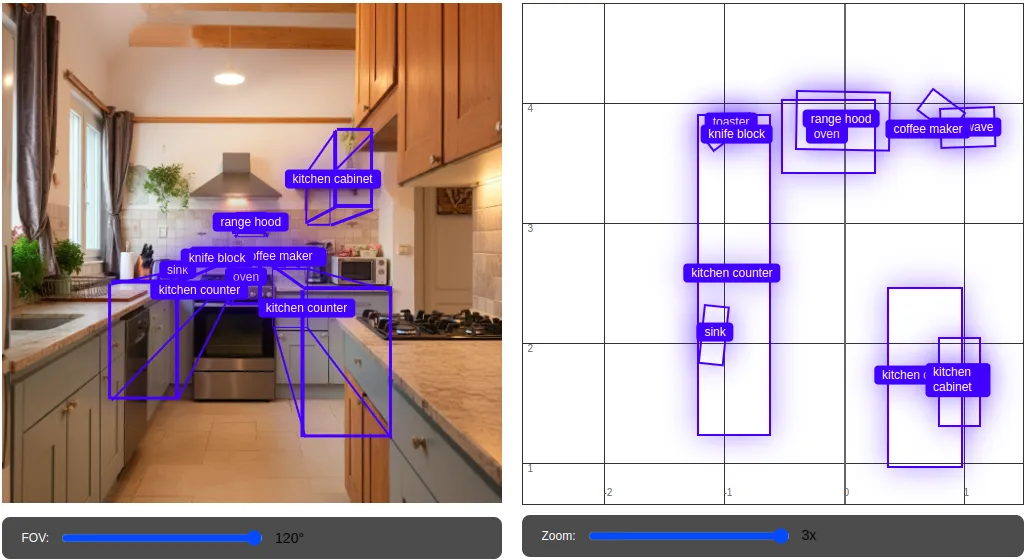
As you can see here, Gemini goes even further, it can infer 3D information contained in 2D images. For example, given two views of the same scene, Gemini can match corresponding points, achieving a kind of rough 3D correspondence, given both views. It was able to detect the kitchen appliances. Moreover, you can even play with the sliding bars to zoom in or zoom out or hover the cursor over the box to visualise the detection in more detail.
How Gemini Points: Interacting with Objects
Along with passive detection, Gemini can also actively point to objects. If you provide Gemini with an image and an accompanying prompt, it will return coordinates as output. This will produce a list of 2D points, normalized to a grid with dimensions of 1000×1000. You could instruct the model to “point to all objects that are red.” Other options would be to indicate a location like “point to where you would grasp the tool.” In the latter case, the model will return a JSON list of points and labels. The returned output is often more flexible than bounding boxes.
For example, when we asked the model to find a grasp point on a mug, it was able to correctly point to the handle for the grasp point. Gemini would be able to indicate spatial areas as well. For instance, for two-dimensional areas, it could find… “empty spot” or a “safe area to step”
Code Example: 2D Pointing
from google.colab import userdata

GOOGLE_API_KEY=userdata.get('GOOGLE_API_KEY')

from google import genai

from google.genai import types

from PIL import Image

# Load sample images

!wget https://storage.googleapis.com/generativeai-downloads/images/kitchen.jpg -O kitchen.jpg -q

# Loading the API

client = genai.Client(api_key=GOOGLE_API_KEY)

# Load the selected image

img = Image.open("room.jpg")

# Load and resize image

img = Image.open("tool.png")

img = img.resize((800, int(800 * img.size[1] / img.size[0])), Image.Resampling.LANCZOS) # Resizing to speed-up rendering

# Analyze the image using Gemini

image_response = client.models.generate_content(

   model=MODEL_ID,

   contents=[

       img,

       """

      Point to no more than 10 items in the image, include spill.

      The answer should follow the json format: [{"point": <point>, "label": <label1>}, ...]. The points are in [y, x] format normalized to 0-1000.

    """

   ],

   config = types.GenerateContentConfig(

    temperature=0.5

   )

)

# Check response

print(image_response.text)
Output:
[[
{"point": [130, 760], "label": "handle"},
{"point": [427, 517], "label": "screw"},
{"point": [472, 201], "label": "clamp arm"},
{"point": [466, 345], "label": "clamp arm"},
{"point": [685, 312], "label": "3 inch"},
{"point": [493, 659], "label": "screw"},
{"point": [402, 474], "label": "screw"},
{"point": [437, 664], "label": "screw"},
{"point": [427, 784], "label": "handle"},
{"point": [452, 852], "label": "handle"}
]
Gemini’s pointing function is also defined as open vocabulary meaning a user can refer to an object or parts of an object in a natural language. Gemini was successful in pointing to buttons and handles (parts of objects) without models being trained on those specific objects and in the HTML script we’ll use the Point detected via Gemini and pin point all the objects detected by it.
# @title Point visualization code
import IPython

def parse_json(json_output):
    # Parsing out the markdown fencing
    lines = json_output.splitlines()
    for i, line in enumerate(lines):
        if line == "```json":
            json_output = "\n".join(lines[i+1:])  # Remove everything before "```json"
            json_output = json_output.split("```")[0]  # Remove everything after the closing "```"
            break  # Exit the loop once "```json" is found
    return json_output

def generate_point_html(pil_image, points_json):
    # Convert PIL image to base64 string
    import base64
    from io import BytesIO
    buffered = BytesIO()
    pil_image.save(buffered, format="PNG")
    img_str = base64.b64encode(buffered.getvalue()).decode()
    points_json = parse_json(points_json)
    return f"""
<!DOCTYPE html>
<html>
<head>
    <title>Point Visualization</title>
    <style>
    body {{
        margin: 0;
        padding: 0;
        background: #fff;
        color: #000;
        font-family: -apple-system, BlinkMacSystemFont, 'Segoe UI', Roboto, sans-serif;
    }}
    .point-overlay {{
        position: absolute;
        top: 0;
        left: 0;
        width: 100%;
        height: 100%;
        pointer-events: none;
    }}
    .point {{
        position: absolute;
        width: 12px;
        height: 12px;
        background-color: #2962FF;
        border: 2px solid #fff;
        border-radius: 50%;
        transform: translate(-50%, -50%);
        box-shadow: 0 0 40px rgba(41, 98, 255, 0.6);
        opacity: 0;
        transition: all 0.3s ease-in;
        pointer-events: auto;
    }}
    .point.visible {{
        opacity: 1;
    }}
    .point.fade-out {{
        animation: pointFadeOut 0.3s forwards;
    }}
    .point.highlight {{
        transform: translate(-50%, -50%) scale(1.1);
        background-color: #FF4081;
        box-shadow: 0 0 40px rgba(255, 64, 129, 0.6);
        z-index: 100;
    }}
    @keyframes pointFadeOut {{
        from {{
            opacity: 1;
        }}
        to {{
            opacity: 0.7;
        }}
    }}
    .point-label {{
        position: absolute;
        background-color: #2962FF;
        color: #fff;
        font-size: 14px;
        padding: 4px 12px;
        border-radius: 4px;
        transform: translate(20px, -10px);
        white-space: nowrap;
        opacity: 0;
        transition: all 0.3s ease-in;
        box-shadow: 0 0 30px rgba(41, 98, 255, 0.4);
        pointer-events: auto;
        cursor: pointer;
    }}
    .point-label.visible {{
        opacity: 1;
    }}
    .point-label.fade-out {{
        opacity: 0.45;
    }}
    .point-label.highlight {{
        background-color: #FF4081;
        box-shadow: 0 0 30px rgba(255, 64, 129, 0.4);
        transform: translate(20px, -10px) scale(1.1);
        z-index: 100;
    }}
    </style>
</head>
<body>
    <div id="container" style="position: relative;">
        <canvas id="canvas" style="background: #000;"></canvas>
        <div id="pointOverlay" class="point-overlay"></div>
    </div>
    <script>
    function annotatePoints(frame) {{
        // Add points with fade effect
        const pointsData = {points_json};
        const pointOverlay = document.getElementById('pointOverlay');
        pointOverlay.innerHTML = '';
        const points = [];
        const labels = [];
        pointsData.forEach(pointData => {{
            // Skip entries without coodinates.
            if (!(pointData.hasOwnProperty("point")))
                return;
            const point = document.createElement('div');
            point.className="point";
            const [y, x] = pointData.point;
            point.style.left = `${{x/1000.0 * 100.0}}%`;
            point.style.top = `${{y/1000.0 * 100.0}}%`;
            const pointLabel = document.createElement('div');
            pointLabel.className="point-label";
            pointLabel.textContent = pointData.label;
            point.appendChild(pointLabel);
            pointOverlay.appendChild(point);
            points.push(point);
            labels.push(pointLabel);
            setTimeout(() => {{
                point.classList.add('visible');
                pointLabel.classList.add('visible');
            }}, 0);
            // Add hover effects
            const handleMouseEnter = () => {{
                // Highlight current point and label
                point.classList.add('highlight');
                pointLabel.classList.add('highlight');
                // Fade out other points and labels
                points.forEach((p, idx) => {{
                    if (p !== point) {{
                        p.classList.add('fade-out');
                        labels[idx].classList.add('fade-out');
                    }}
                }});
            }};
            const handleMouseLeave = () => {{
                // Remove highlight from current point and label
                point.classList.remove('highlight');
                pointLabel.classList.remove('highlight');
                // Restore other points and labels
                points.forEach((p, idx) => {{
                    p.classList.remove('fade-out');
                    labels[idx].classList.remove('fade-out');
                }});
            }};
            point.addEventListener('mouseenter', handleMouseEnter);
            point.addEventListener('mouseleave', handleMouseLeave);
            pointLabel.addEventListener('mouseenter', handleMouseEnter);
            pointLabel.addEventListener('mouseleave', handleMouseLeave);
        }});
    }}
    // Initialize canvas
    const canvas = document.getElementById('canvas');
    const ctx = canvas.getContext('2d');
    const container = document.getElementById('container');
    // Load and draw the image
    const img = new Image();
    img.onload = () => {{
        const aspectRatio = img.height / img.width;
        canvas.width = 800;
        canvas.height = Math.round(800 * aspectRatio);
        container.style.width = canvas.width + 'px';
        container.style.height = canvas.height + 'px';
        ctx.drawImage(img, 0, 0, canvas.width, canvas.height);
        frame.width = canvas.width;
        frame.height = canvas.height;
        annotatePoints(frame);
    }};
    img.src="data:image/png;base64,{img_str}";
    const frame = {{
        width: canvas.width,
        height: canvas.height
    }};
    annotatePoints(frame);
    </script>
</body>
</html>
"""
This above script will create an HTML rendering of the image and the points.

Key Pointing Capabilities
This capability for pointing does not stop at simple objects. It is also capable of comprehending function, pathways, and complex user intent.
- Open-vocabulary points: The Gemini system can point to anything described through language. It can label a spoon handle and the center of a can upon request.
- Affordance inference: The model can infer function. For example, it will point to the handle of a pan or to a safe location to grab.
- Trajectory hints: It can even output sequences of points as a path. In describing waypoints, it lists multiple locations that fall between a starting and ending goal. In the same example it output a new path from a human hand to some tool.
- Benchmark performance: When evaluated on pointing benchmarks, Gemini 2.0 performed significantly better than other models such as GPT-4 Vision. In a benchmark example the specialized model Robotics-ER outperformed even a dedicated pointing AI through various measures.
Pointing is linked to action. Ex. In a robot that is informed by Gemini, it can localize the fruit item and determine grasp points. Thus, the AI will point to the fruit item and compute a grasp location that is above it. Thus, Gemini allows robots to physically reason and act. In summary, it is to point to a target and plan how to reach and secure that target.
How Gemini Reasons: Spatial Planning & Embodied Intelligence
Gemini’s spatial reasoning skill manifests in genuine embodied reasoning. It shifts from perceiving to planning actions. Given a goal, Gemini can plan actions with multi-step sequences. It is able to ‘imagine’ how to move.
For example, It would plan where to grasp a mug and how to approach the mug. Google states, Gemini “intuitively figures out an appropriate two-finger grasp… and a safe trajectory.” This indicates it understands the 3D pose of the mug, where the handle would be, and where to move toward.
Moreover, Gemini can capture ‘entire control pipelines.’ In trials, Gemini Robotics-ER did everything from perception to code. It took a picture, detected objects, estimated states, reasoned about how to move and made executable robot code. DeepMind said that it “performs all the necessary steps” even when the robot system is powered on. This could allow for an overall doubling or tripling of task success rates.
Conclusion
Current AI is developing a level of situational awareness which was previously only limited to humans. Google’s Gemini models exemplify such advancement with watershed developments while seeing space three-dimensionally, identifying objects, and thinking about actions. By merging vision and language, Gemini models can postulate about the object and estimate its location, respond to grammar, and write code for robots to act on the information.
While we are still facing challenges related to precision and experimental features, the Gemini models represent a significant advancement in AI. This model designs AI to act more like a human navigating the world. We perceive space, reason about space, and use that information to inform action. As the technology matures, we can expect additional portions of the model to relate to spatial reasoning, a step forward towards useful robots and AR systems.
Frequently Asked Questions
A. It learns from massive paired image–text data, multi-view cues, and geometric patterns so it can infer depth, orientation, and object layout directly from 2D images.
A. It returns open-vocabulary coordinates for objects or parts, infers affordances like grasp points, and can outline paths or safe areas for real-world interaction.
A. It can detect objects, infer 3D poses, choose grasp points, and generate step-by-step action plans, allowing robots to move and act with more human-like reasoning.

Hello! I’m Vipin, a passionate data science and machine learning enthusiast with a strong foundation in data analysis, machine learning algorithms, and programming. I have hands-on experience in building models, managing messy data, and solving real-world problems. My goal is to apply data-driven insights to create practical solutions that drive results. I’m eager to contribute my skills in a collaborative environment while continuing to learn and grow in the fields of Data Science, Machine Learning, and NLP.
Login to continue reading and enjoy expert-curated content.