Overview:-
- Learn how to deploy a Docker container on an AWS EC2 instance with ease.
- This guide covers launching an EC2 instance, installing Docker, and running containers.
- Perfect for scaling and optimizing your cloud deployments.
Imagine scaling your app with ease, executing it in a clean and isolated environment, and flexibility as its core. That is what AWS EC2 provides alongside the strong containerization of Docker.
Containers guarantee that your application always works, be it on your laptop or on a cloud server, and with no critical deployment issues associated with it. You are now ready to scale enormously using the cloud.
The best part? You do not have to install elaborate infrastructure or take care of hardware management. Rather, you can have your Docker container running on EC2 with a few simple steps. Let’s dive in.
What is an EC2 Instance?
Consider an EC2 instance as a cloud virtual server. It is a computing powerhouse capable of running your applications; it is just like your office server, but flexible and scalable.
EC2 can be scaled in real time, is hosted on Amazon Web Services (AWS), and, therefore, is ideal in cases with fluctuating workloads.
It provides us with the following benefits:
- Hosting Applications: Host applications, backend services, or APIs whenever you desire.
- Running Containers: Docker containers may be scaled efficiently without hardware constraints.
- Testing & Development: Quickly create environments for testing and development.
- Data Processing: It can be used in massive data processing, analytics, or batch processing.
- Custom Environments: Configure and install exactly what your app needs.
What is Docker?
Docker is a robust system that has been developed to make the procedure of creating, launching, and executing applications in containers easier.
Containers are lightweight, self-contained packages that contain all the software and infrastructure necessary to execute an application, code, runtime, system tools, and libraries, as well as act in a predictable manner when run in any environment.
Also, in contrast to virtual machines, Docker containers have the same kernel as the host operating system, which is much faster and efficient.
One does not have to pre-allocate RAM or disk space; Docker takes advantage of system resources dynamically depending on the requirements of the application.
Deploying Docker Images on an AWS EC2 Instance
You are all set to launch your Docker container. We will simplify it into easy steps. You need not be concerned with the jargon; the procedure is simple, and we will take you through the stages.
To begin with, we would initially start an EC2 instance, which we would then manually install Docker on. After that, we’ll run Docker images directly on the instance.
Avoid using the latest tags for base images. Pin to specific versions to ensure consistent builds.
Hiring the right developers is key to successfully deploying your project. Soft Suave’s expert team ensures smooth, scalable, and efficient deployment for your business needs.

Step 1: Launch an EC2 Instance
- Sign in to the AWS Management Console.
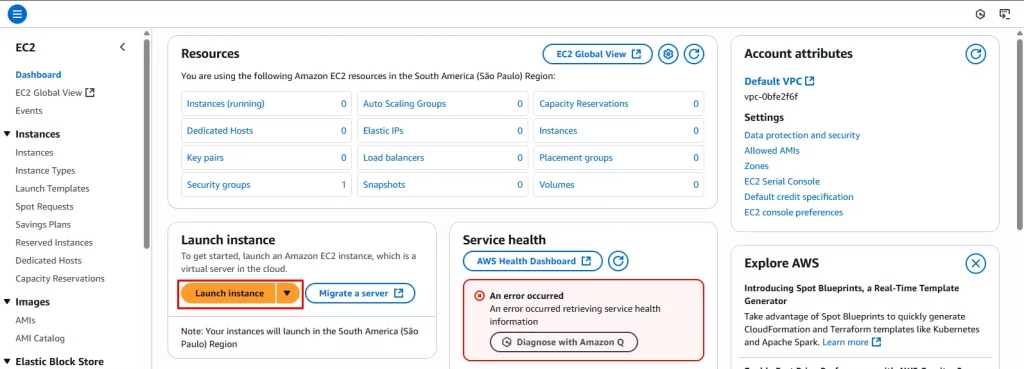
- In the search at the top, type EC2 and click on EC2 service
- You will be taken to the EC2 Dashboard.
- Click the button “Launch Instance” to get started.
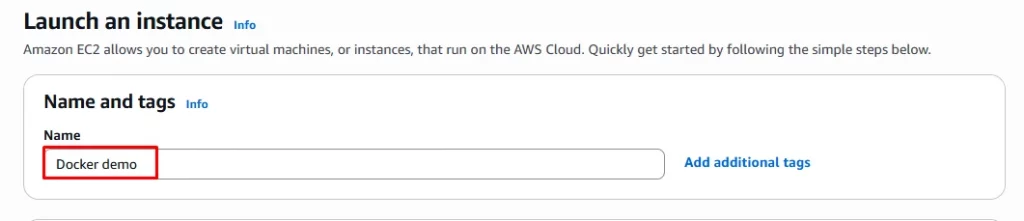
5. Name your instance (optional, but helpful for identification).
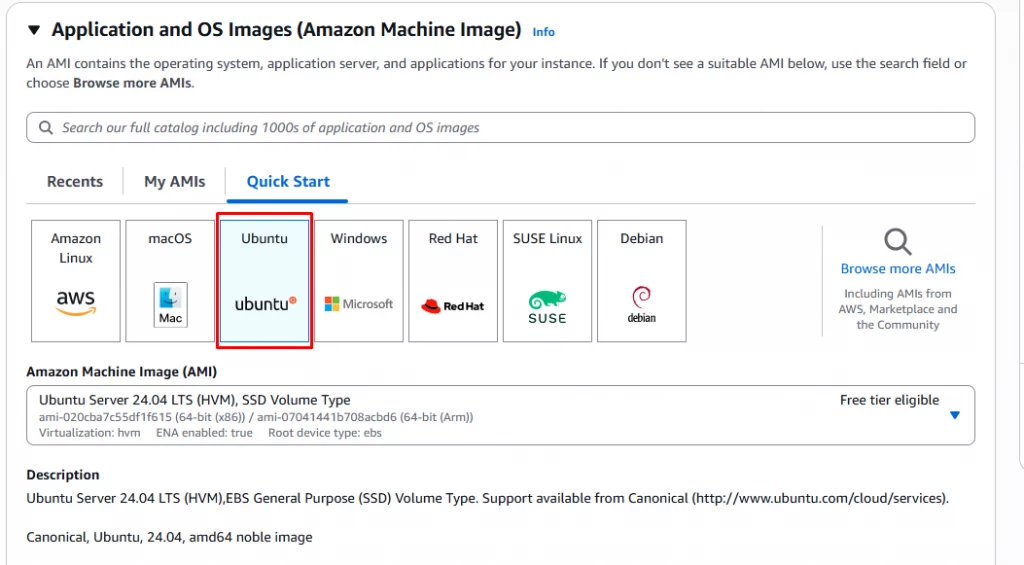
6. Under Application and OS Images (Amazon Machine Image), choose an OS:
- For this guide, you can select Ubuntu or Amazon Linux
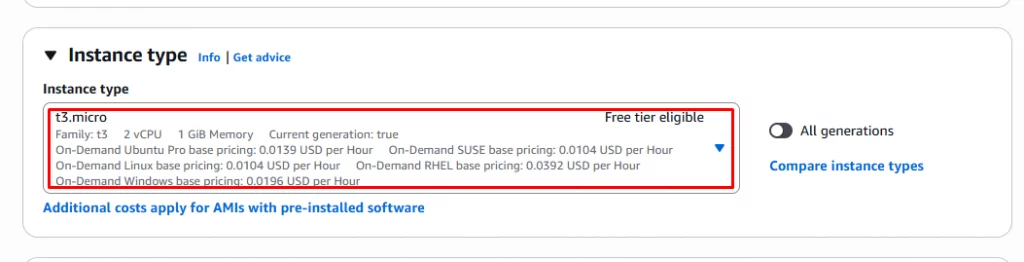
7. Choose an instance type (e.g., t2.micro if you’re using the free tier).
8. Create a new key pair:
- Select Create new key pair.
- Give it a name.
- Choose the key format:
- .pem for Linux/macOS.
- .ppk for Windows (to use with PuTTY).
- Click Download Key Pair and save it securely — you’ll need this to connect to your instance.

9. Under Network settings, configure the Security Group:
- Enable SSH (port 22) for remote access.
- Optionally, if your app requires it, you can allow other ports like 80 (HTTP) or 443(HTTPS).
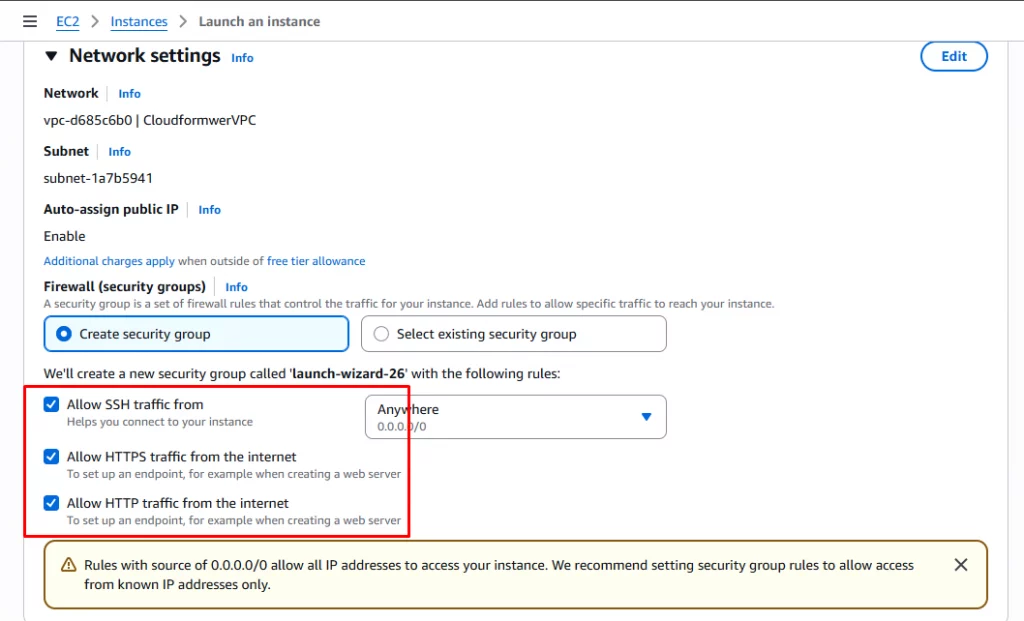
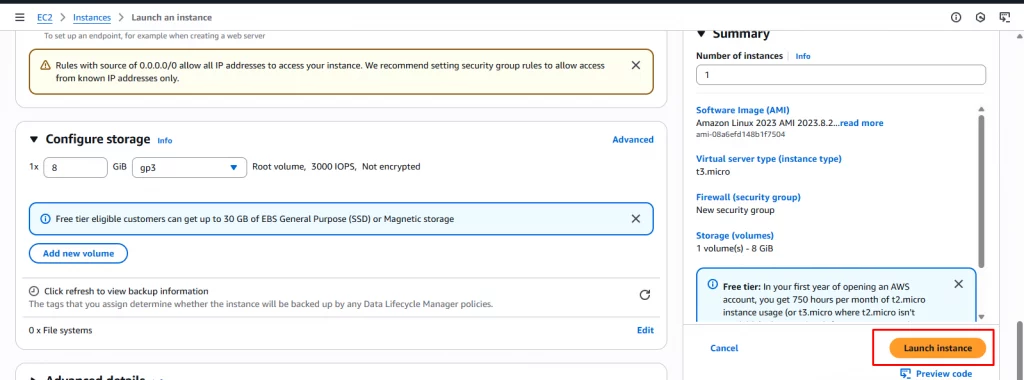
10. Scroll down and click Launch Instance.
Soft Suave offers a dedicated team of skilled developers who specialize in cloud deployments. We’re here to make sure the project is optimized for maximum performance.
Step 2: Install Docker on the EC2 Instance
After starting your EC2 instance, these are the steps you should take to install Docker and test a sample container.
1. Connect to Your EC2 Instance
Go to the folder where your key pair (.pem file) is stored. Then open a terminal and run:
ssh -i your-keypair.pem ec2-user@<EC2-INSTANCE-PUBLIC-IP>
Replace <EC2-INSTANCE-PUBLIC-IP> with the actual public IP address of your instance.
2. Install Docker
Once connected to the instance, install Docker using the following command:
sudo yum install -y docker
If you’re using Ubuntu instead of Amazon Linux, use:
sudo apt update
sudo apt install -y docker.io
3. Start the Docker Service
After installation, start Docker with:
sudo service docker start
To verify that Docker is running correctly, use:
docker info
If everything was installed successfully, this command will show detailed information about your Docker setup without errors.
4. Run a Docker Container
Now, let’s run a sample Docker image. For demonstration, we’ll use a simple Node.js app:
docker run hello-world
5. Test Your Deployment
To test if your container is working, run:
curl http://localhost
If everything is running correctly, you’ll see
Hello from Docker!
6. Access from Browser
Now, open your browser and visit:
http://<EC2-INSTANCE-PUBLIC-IP>
You should see the same “Hello world!” message there as well.
Conclusion
You now have a live Docker container on AWS EC2 with little effort. No complex settings, simply an installation. The cloud gives you the power to scale, administer, and access your application anywhere.
Docker ensures that your application works as expected, and with EC2, you get the scalability as your users increase.
The combination is simple, but efficient to make sure that your application is agile, reliable, and future-proof to any challenge that may come your way.
Why use less when you can use fast, scalable, and efficient deployment? Start today and see the difference.

 Verified Expert
 15+ Years of experience