This comprehensive guide will give you practical steps to build a subscription tracker to track all your subscriptions in one place using MS Excel Online and send you email alerts before renewal. This is a very important tool, especially in today’s world, where we often pay for needless tools and services and often forget about them until a renewal fee is charged to us. This guide will help you automatically calculate renewal dates for any billing frequency(Weekly/Monthly/Yearly), and send email renewal alerts, while at the same time tracking spending patterns across categories and over a period of time.
Step 1: Design The Column Structure
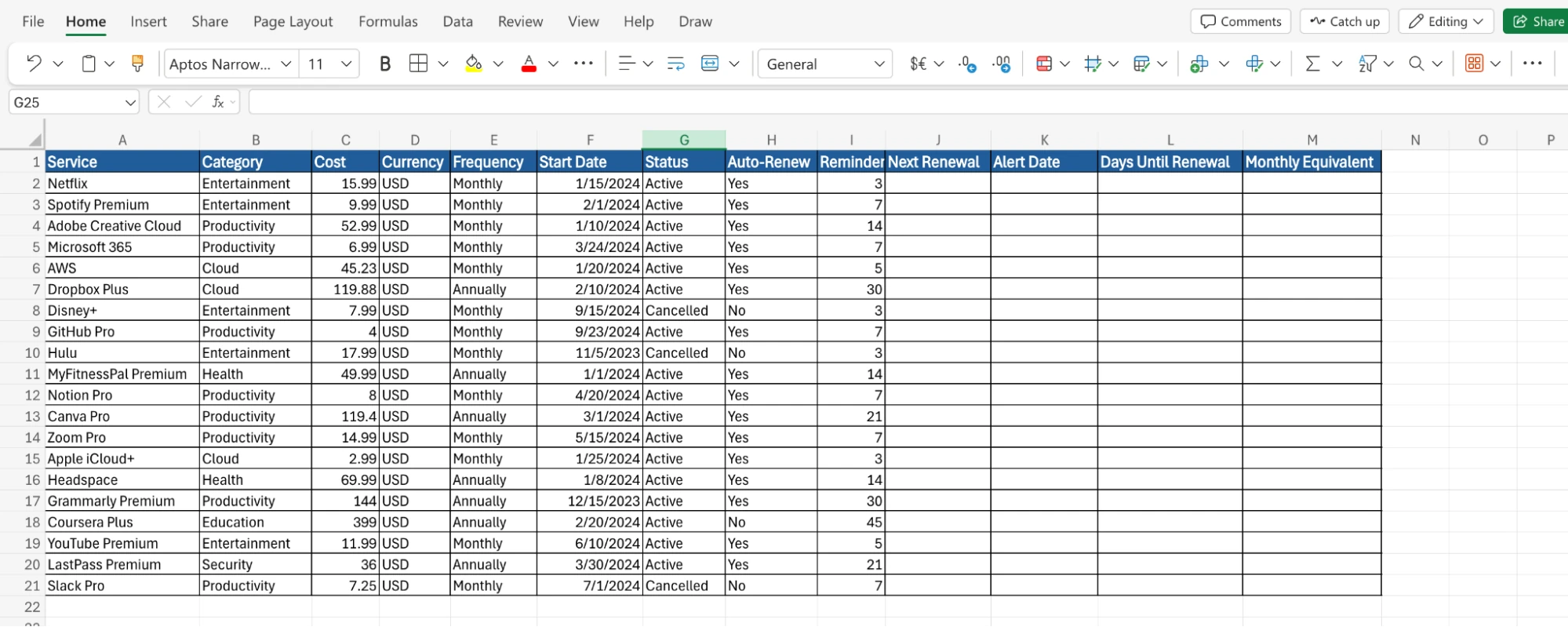
Open Excel Online and decide the column structure based on the details we want to track, and based on that, fill in the header rows. I have used the structure below:
A1: Service - Subscription name (Netflix, Spotify)B1: Category - Type (Entertainment, Productivity)
C1: Cost - Monthly/annual price
D1: Currency - USD, EUR, etc.
E1: Frequency - Monthly, Quarterly, Annually
F1: Start Date - First billing date
G1: Status - Active, Cancelled, Paused
H1: Auto-Renew - Yes/No
I1: Reminder Days - Alert timing (7, 14, 30)
J1: Next Renewal - Calculated renewal date
K1: Alert Date - When to send reminder
L1: Days Until - Countdown to renewal
M1: Monthly Equivalent - Normalized monthly cost
Step 2: Fill in Sample Data
Insert a sample of various subscription services. We can add different products based on diverse categories. Also include both active and cancelled subscriptions to test the formulas. Leave Columns J, K, L, and M empty for now, as they will be filled automatically with the help of formulas in the upcoming steps.
Step 3: Building Smart Calculation Formulas
Now, we’ll add formulas to automatically calculate renewal dates and alerts. These formulas handle different billing cycles and exclude cancelled subscriptions.
- Next Renewal Date Formula (Column J):
Click cell J2 and enter this formula:
IF(G2="Cancelled","",IF(E2="Monthly",IF(DAY(F2)>DAY(TODAY()),DATE(YEAR(TODAY()),MONTH(TODAY()),DAY(F2)),DATE(YEAR(TODAY()),MONTH(TODAY())+1,DAY(F2))),IF(E2="Quarterly",DATE(YEAR(TODAY()),MONTH(F2)+3,DAY(F2)),IF(E2="Semi-Annual",DATE(YEAR(TODAY()),MONTH(F2)+6,DAY(F2)),DATE(YEAR(TODAY())+1,MONTH(F2),DAY(F2))))))This returns blank for cancelled subscriptions and calculates the next monthly renewal automatically based on the start date.
- Alert Date Formula (Column K)
Click cell K2 and enter this formula: =IF(G2="Cancelled","",IF(J2="","",J2-I2))
This subtracts reminder days from the renewal date to determine when alerts should trigger.
- Days Until Renewal (Column L)
Click cell L2 and enter this formula: =IF(G2="Cancelled","",IF(J2="","",J2-TODAY()))
This creates a countdown showing days remaining until renewal.
- Monthly Equivalent(Column M)
Click cell M2 and enter this formula:
=IF(G2="Cancelled",0,IF(E2="Monthly",C2,IF(E2="Quarterly",C2/3,IF(E2="Semi-Annual",C2/6,C2/12))))This normalizes all costs to monthly amounts for budget planning.
Step 4: Build A Summary Dashboard
Add a summary dashboard starting at row 24 to track key metrics:
- Total Monthly Equivalent (In USD): Add This Formula to calculate monthly costs:
=SUMIFS(M:M,G:G,"Active")- Active Subscriptions: Add This Formula to calculate active subscriptions:
=COUNTIF(G:G,"Active")- Renewals In Next 30 Days: Add This Formula to calculate Upcoming Renewals:
=SUMPRODUCT((G2:G50="Active")*(L2:L50<=30)*(L2:L50>0)*(L2:L50<>""))- Estimated Upcoming Cost (In USD): Add This Formula to calculate Upcoming costs:
=SUMPRODUCT((G2:G50="Active")*(L2:L50<=30)*(L2:L50>0)*(L2:L50<>"")*(C2:C50))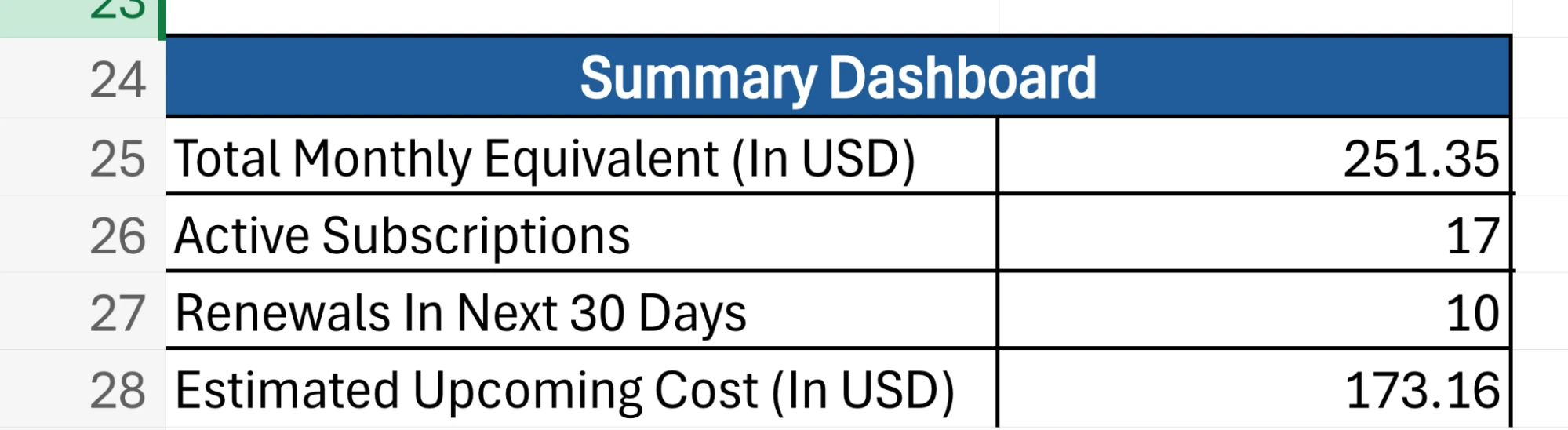
Step 5: Creating Visual Alerts
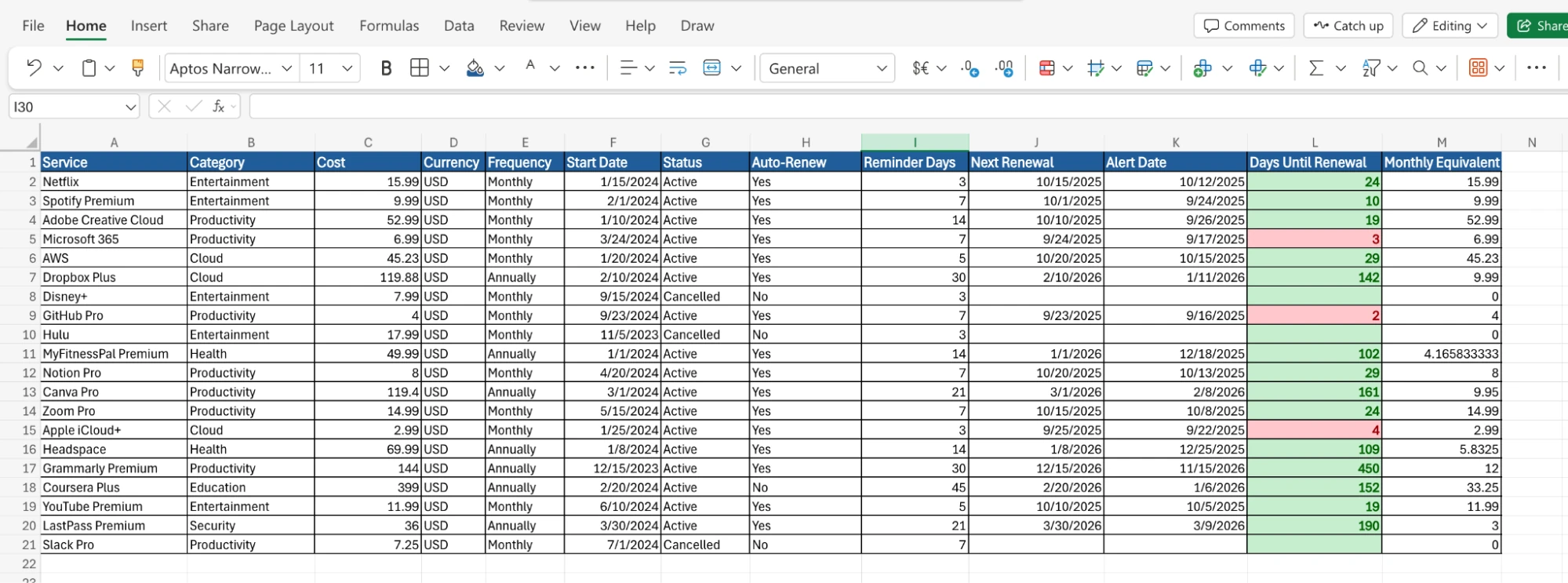
Now set up conditional formatting to highlight urgent renewals:
- Select column L (Days Until Renewal)
- Go to Home -> Conditional Formatting -> Highlight Cell Rules
- Choose less than and equal to 4, and choose red formatting for urgent alerts
- Repeat step 2 and add another rule with yellow formatting for moderate warnings for cell values between 5 and 7
- Repeat step 2 and add another rule with green formatting for mild warnings for cell values 8 and above
Now, subscriptions will automatically highlight in different colors based on their pending renewal days.
Step 6: Set up Automated Email Alerts
Since Excel Online doesn’t have built-in email automation, we’ll use Google Apps Script to create powerful automated email alerts.
Steps for Setting Up Google Apps Script:
- Upload File: Upload your Excel file to Google Sheets.
- Access Apps Script: In your Google Sheet, go to Extensions -> Apps Script
- Delete Default Code: Remove the existing code
- Create New Project: The project will auto-save as “Untitled project”
- Rename Project: Click “Untitled project” and rename to “Subscription Email Alerts”
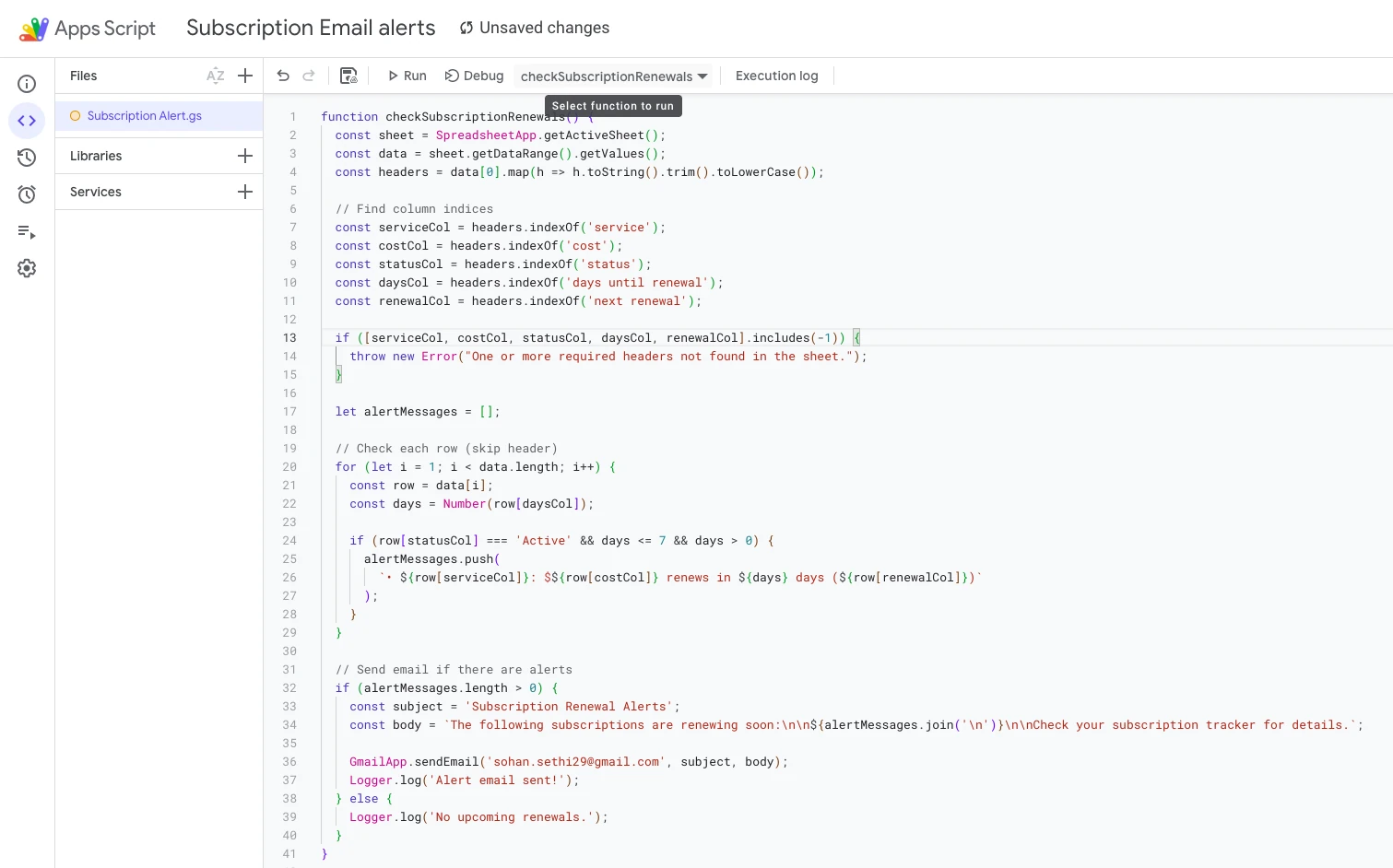
Paste this complete script into the Code.gs file:
function checkSubscriptionRenewals() {

 const sheet = SpreadsheetApp.getActiveSheet();

 const data = sheet.getDataRange().getValues();

 const headers = data[0].map(h => h.toString().trim().toLowerCase());

 // Find column indices

 const serviceCol = headers.indexOf('service');

 const costCol = headers.indexOf('cost');

 const statusCol = headers.indexOf('status');

 const daysCol = headers.indexOf('days until renewal');

 const renewalCol = headers.indexOf('next renewal');

 if ([serviceCol, costCol, statusCol, daysCol, renewalCol].includes(-1)) {

   throw new Error("One or more required headers not found in the sheet.");

 }

 let alertMessages = [];

 // Check each row (skip header)

 for (let i = 1; i < data.length; i++) {

   const row = data[i];

   const days = Number(row[daysCol]);

   if (row[statusCol] === 'Active' && days <= 7 && days > 0) {

     alertMessages.push(

       `• ${row[serviceCol]}: $${row[costCol]} renews in ${days} days (${row[renewalCol]})`

     );

   }

 }

 // Send email if there are alerts

 if (alertMessages.length > 0) {

   const subject="Subscription Renewal Alerts";

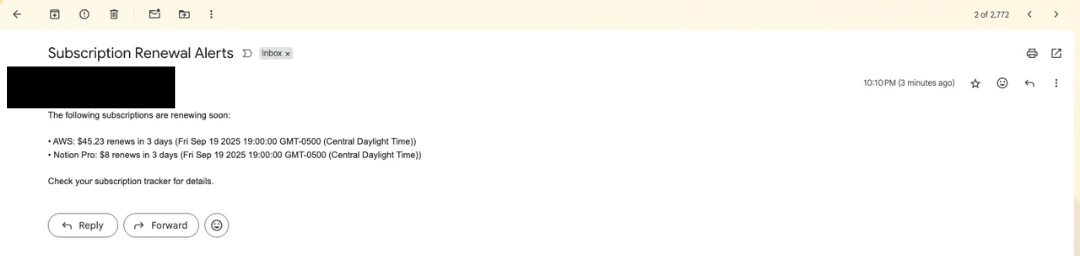
   const body = `The following subscriptions are renewing soon:\n\n${alertMessages.join('\n')}\n\nCheck your subscription tracker for details.`;

   GmailApp.sendEmail('[email protected]', subject, body);

   Logger.log('Alert email sent!');

 } else {

   Logger.log('No upcoming renewals.');

 }

}
Output:
Read more: Excel for Data Analysis
Best Practices for Maintenance
Here are some of the pointers you can follow to keep the process running:
- Weekly Review: Check upcoming renewals and take action on unwanted services
- Monthly Updates: Add new subscriptions and update cancelled ones
- Quarterly Analysis: Review spending patterns and negotiate better rates
- Annual Audit: Comprehensive review of all subscriptions for optimization
Conclusion
With countless subscription services, it is difficult to keep track of all your recurring expenses. However, now with the help of this Excel tracker, you can be on top of your things and help save money. With the help of this knowledge, you can now:
- Build a comprehensive subscription tracker in Excel Online with advanced formulas
- Automate email alerts using Google Apps Script
- Handle complicated subscriptions with different billing cycles, as well as cancelled subscriptions
- Maintain control over recurring expenses through systematic tracking and alerts
With this system, you’ll never lose track of subscription costs again and can make informed decisions for only those subscriptions that provide real value.
You can access the subscription tracker Excel file from here: Excel Online
Frequently Asked Questions
A. Common causes and solutions may include:
1. Ensure the Start Date column (F) is formatted as dates
2. Use consistent date format: MM/DD/YYYY or DD/MM/YYYY
3. Ensure the Status column contains exactly “Active” or “Cancelled”
4. Blank cells in critical columns can cause errors
A. The tracker can easily handle 100+ subscriptions (performance may slow with 500+). However, it is recommended to keep under 200 subscriptions for optimal performance.
A. Follow the following troubleshooting steps:
1. Check Start Date Format: Must be a proper date, not text
2. Verify Frequency Values: Use exactly “Monthly”, “Quarterly”, “Semi-Annual”, “Annually”
3. Test Simple Case: Try with a recent monthly subscription
4. Manual Verification: Calculate one renewal date manually to verify logic
A. Google Apps Script runs once daily at your chosen time (recommended: 9 AM). You’ll only get emails when you have subscriptions renewing within your alert window (typically 7 days). No renewals = no emails.

Sohan Sethi is a Data Analytics Manager and Content creator passionate about using data, technology, and storytelling to create meaningful impact. With experience in healthcare, analytics, and workflow automation, he has built tools and platforms that streamline processes for thousands of users, combining technical expertise in SQL, Python, Excel, SharePoint, and Power Platform with a people-first approach to problem-solving.
Beyond his professional career, Sohan is dedicated to empowering job seekers and international students through free resources, mentorship, and thought leadership. He has given a TEDx talk and featured in multiple media platforms including Business Insider, CNBC, Fox News, etc. He regularly shares strategies on job search, career growth, and adapting to challenges. His work has inspired professionals worldwide to unlock opportunities and reach their goals.
Login to continue reading and enjoy expert-curated content.